 ChuckandChuck
67197635c9
ChuckandChuck
67197635c9
* fix(web): Resolve font display and config API error handling issues

- Fix font catalog display error where path.startsWith fails
  (path is object, not string)
- Update save_main_config to use error_response() helper
- Improve save_raw_main_config error handling consistency
- Add proper error codes and traceback details to API responses

* fix(web): Prevent fontCatalog redeclaration error on HTMX reload

- Use window object to store global font variables
- Check if script has already loaded before declaring variables
- Update both window properties and local references on assignment
- Fixes 'Identifier fontCatalog has already been declared' error

* fix(web): Wrap fonts script in IIFE to prevent all redeclaration errors

- Wrap entire script in IIFE that only runs once
- Check if script already loaded before declaring variables/functions
- Expose initializeFontsTab to window for re-initialization
- Prevents 'Identifier has already been declared' errors on HTMX reload

* fix(web): Exempt config save API endpoints from CSRF protection

- Exempt save_raw_main_config, save_raw_secrets_config, and save_main_config from CSRF
- These endpoints are called via fetch from JavaScript and don't include CSRF tokens
- Fixes 500 error when saving config via raw JSON editor

* fix(web): Exempt system action endpoint from CSRF protection

- Exempt execute_system_action from CSRF
- Fixes 500 error when using system action buttons (restart display, restart Pi, etc.)
- These endpoints are called via HTMX and don't include CSRF tokens

* fix(web): Exempt all API v3 endpoints from CSRF protection

- Add before_request handler to exempt all api_v3.* endpoints
- All API endpoints are programmatic (HTMX/fetch) and don't include CSRF tokens
- Prevents future CSRF errors on any API endpoint
- Cleaner than exempting individual endpoints

* refactor(web): Remove CSRF protection for local-only application

- CSRF is designed for internet-facing apps to prevent cross-site attacks
- For local-only Raspberry Pi app, threat model is different
- All endpoints were exempted anyway, so it wasn't protecting anything
- Forms use HTMX without CSRF tokens
- If exposing to internet later, can re-enable with proper token implementation

* fix(web): Fix font path double-prefixing in font catalog display

- Only prefix with 'assets/fonts/' if path is a bare filename
- If path starts with '/' (absolute) or 'assets/' (already prefixed), use as-is
- Fixes double-prefixing when get_fonts_catalog returns relative paths like 'assets/fonts/press_start.ttf'

* fix(web): Remove fontsTabInitialized guard to allow re-initialization on HTMX reload

- Remove fontsTabInitialized check that prevented re-initialization on HTMX content swap
- The window._fontsScriptLoaded guard is sufficient to prevent function redeclaration
- Allow initializeFontsTab() to run on each HTMX swap to attach listeners to new DOM elements
- Fixes fonts UI breaking after HTMX reload (buttons, upload dropzone, etc. not working)

* fix(api): Preserve empty strings for optional string fields in plugin config

- Add _is_field_required() helper to check if fields are required in schema
- Update _parse_form_value_with_schema() to preserve empty strings for optional string fields
- Fixes 400 error when saving MQTT plugin config with empty username/password
- Resolves validation error: 'Expected type string, got NoneType'

* fix(config): Add defaults to schemas and fix None value handling

- Updated merge_with_defaults to replace None values with defaults
- Fixed form processing to skip empty optional fields without defaults
- Added script to automatically add defaults to all plugin config schemas
- Added defaults to 89 fields across 10 plugin schemas
- Prevents validation errors from None values in configs

Changes:
- schema_manager.py: Enhanced merge_with_defaults to replace None with defaults
- api_v3.py: Added _SKIP_FIELD sentinel to skip optional fields without defaults
- add_defaults_to_schemas.py: Script to add sensible defaults to schemas
- Plugin schemas: Added defaults for number, boolean, and array fields

* fix(config): Fix save button spinner by checking HTTP status code

- Fixed handleConfigSave to check xhr.status instead of event.detail.successful
- With hx-swap="none", HTMX doesn't set event.detail.successful
- Now properly detects successful saves (status 200-299) and stops spinner
- Improved error message extraction from API responses
- Also fixed handleToggleResponse for consistency

* fix(web-ui): Resolve GitHub token warning persistence after save

- Made checkGitHubAuthStatus() return Promise for proper async handling
- Clear sessionStorage dismissal flag when token is saved
- Add delay before status check to ensure backend token reload
- Wait for status check completion before hiding settings panel

Fixes issue where GitHub token warnings and pop-ups would not
disappear after successfully saving a token in the web UI.

* fix(web-ui): Add token validation and improve GitHub token warning behavior

- Add token validation to backend API endpoint to check if token is valid/expired
- Implement _validate_github_token() method in PluginStoreManager with caching
- Update frontend to show warning only when token is missing or invalid
- Keep settings panel accessible (collapsible) when token is configured
- Collapse settings panel content after successful token save instead of hiding
- Display specific error messages for invalid/expired tokens
- Clear sessionStorage dismissal flag when token becomes valid

Fixes issue where GitHub token warnings and settings panel would not
properly hide/show based on token status. Now validates token validity
and provides better UX with collapsible settings panel.

* fix(web-ui): Fix CSS/display issue for GitHub token warning and settings

- Update all hide/show operations to use both classList and style.display
- Fix checkGitHubAuthStatus() to properly hide/show warning and settings
- Fix dismissGithubWarning() to use both methods
- Fix toggleGithubTokenSettings() with improved state checking
- Fix collapse button handler with improved state checking
- Fix saveGithubToken() to properly show/collapse settings panel

This ensures elements actually hide/show when status changes, matching
the pattern used elsewhere in the codebase (like toggleSection). All
buttons (dismiss, close, collapse) should now work correctly.

* fix(web-ui): Fix GitHub token expand button functionality

- Convert collapse button handler to named function (toggleGithubTokenContent)
- Improve state checking using class, inline style, and computed style
- Re-attach event listener after saving token to ensure it works
- Add console logging for debugging
- Make function globally accessible for better reliability

Fixes issue where expand button didn't work after saving token.

* fix(web-ui): Remove X button and improve GitHub token panel behavior

- Remove X (close) button from GitHub token configuration panel
- Replace toggleGithubTokenSettings() with openGithubTokenSettings() that only opens
- Auto-collapse panel when token is valid (user must click expand to edit)
- Auto-detect token status on page load (no need to click save)
- Simplify saveGithubToken() to rely on checkGitHubAuthStatus() for UI updates
- Ensure expand button works correctly with proper event listener attachment

The panel now remains visible but collapsed when a token is configured,
allowing users to expand it when needed without the ability to completely hide it.

* refactor(web-ui): Improve GitHub token collapse button code quality

- Update comment to reflect actual behavior (prevent parent click handlers)
- Use empty string for display to defer to CSS instead of hard-coding block/none
- Extract duplicate clone-and-attach logic into attachGithubTokenCollapseHandler() helper
- Make helper function globally accessible for reuse in checkGitHubAuthStatus()

Improves maintainability and makes code more future-proof for layout changes.

* fix(web-ui): Fix collapse/expand button by using removeProperty for display

- Use style.removeProperty('display') instead of style.display = ''
- This properly removes inline styles and defers to CSS classes
- Fixes issue where collapse/expand button stopped working after refactor

* fix(web-ui): Make display handling consistent for token collapse

- Use removeProperty('display') consistently in all places
- Fix checkGitHubAuthStatus() to use removeProperty instead of inline style
- Simplify state checking to rely on hidden class with computed style fallback
- Ensures collapse/expand button works correctly by deferring to CSS classes

* fix(web-ui): Fix token collapse button and simplify state detection

- Simplify state checking to rely on hidden class only (element has class='block')
- Only remove inline display style if it exists (check before removing)
- Add console logging to debug handler attachment
- Ensure collapse/expand works by relying on CSS classes

Fixes issues where:
- Collapse button did nothing
- Auto-detection of token status wasn't working

* debug(web-ui): Add extensive debugging for token collapse button

- Add console logs to track function calls and element detection
- Improve state detection to use computed style as fallback
- Add wrapper function for click handler to ensure it's called
- Better error messages to identify why handler might not attach

This will help identify why the collapse button isn't working.

* debug(web-ui): Add comprehensive debugging for GitHub token features

- Add console logs to checkGitHubAuthStatus() to track execution
- Re-attach collapse handler after plugin store is rendered
- Add error stack traces for better debugging
- Ensure handler is attached when content is dynamically loaded

This will help identify why:
- Auto-detection of token status isn't working
- Collapse button isn't functioning

* fix(web-ui): Move checkGitHubAuthStatus before IIFE to fix scope issue

- Move checkGitHubAuthStatus function definition before IIFE starts
- Function was defined after IIFE but called inside it, causing it to be undefined
- Now function is available when called during initialization
- This should fix auto-detection of token status on page load

* debug(web-ui): Add extensive logging to GitHub token functions

- Add logging when checkGitHubAuthStatus is defined
- Add logging when function is called during initialization
- Add logging in attachGithubTokenCollapseHandler
- Add logging in store render callback
- This will help identify why functions aren't executing

* fix(web-ui): Move GitHub token functions outside IIFE for availability

- Move attachGithubTokenCollapseHandler and toggleGithubTokenContent outside IIFE
- These functions need to be available when store renders, before IIFE completes
- Add logging to initializePlugins to track when it's called
- This should fix the 'undefined' error when store tries to attach handlers

* fix(web-ui): Fix GitHub token content collapse/expand functionality

- Element has 'block' class in HTML which conflicts with 'hidden' class
- When hiding: add 'hidden', remove 'block', set display:none inline
- When showing: remove 'hidden', add 'block', remove inline display
- This ensures proper visibility toggle for the GitHub API Configuration section

* feat(display): Implement on-demand plugin filtering with restart

- Add on-demand plugin filtering to DisplayController initialization
  - Filters available_modes to only include on-demand plugin's modes
  - Allows plugin internal rotation (e.g., NFL upcoming, NCAA FB Recent)
  - Prevents rotation to other plugins
- Implement restart mechanism for on-demand activation/clear
  - _restart_with_on_demand_filter() saves state and restarts with filter
  - _restart_without_on_demand_filter() restores normal operation
  - Supports both systemd service and direct process execution
- Add state preservation across restarts
  - Saves/restores rotation position from cache
  - Restores on-demand config from cache after restart
- Add service detection method
  - Detects if running as systemd service
  - Uses file-based approach for environment variable passing
- Update API endpoints with restart flow comments
- Update systemd service file with on-demand support notes
- Add comprehensive error handling for edge cases

* perf(web-ui): Optimize GitHub token detection speed

- Call checkGitHubAuthStatus immediately when script loads (if elements exist)
- Call it early in initPluginsPage (before full initialization completes)
- Use requestAnimationFrame instead of setTimeout(100ms) for store render callback
- Reduce save token delay from 300ms to 100ms
- Token detection now happens in parallel with other initialization tasks
- This makes token status visible much faster on page load

* fix(ui): Move on-demand modal to base.html for always-available access

- Move on-demand modal from plugins.html to base.html
- Ensures modal is always in DOM when Run On-Demand button is clicked
- Fixes issue where button in plugin_config.html couldn't find modal
- Modal is now available regardless of which tab is active

* fix(ui): Initialize on-demand modal unconditionally on page load

- Create initializeOnDemandModal() function that runs regardless of plugins tab
- Modal is in base.html so it should always be available
- Call initialization on DOMContentLoaded and with timeout
- Fixes 'On-demand modal elements not found' error when clicking button
- Modal setup now happens even if plugins tab hasn't been loaded yet

* fix(ui): Add safety check for updatePluginTabStates function

- Check if updatePluginTabStates exists before calling
- Prevents TypeError when function is not available
- Fixes error when clicking plugin tabs

* fix(ui): Add safety checks for all updatePluginTabStates calls

- Add safety check in Alpine component tab button handler
- Add safety check in Alpine  callback
- Prevents TypeError when function is not available in all contexts

* fix(ui): Add safety check in Alpine  callback for updatePluginTabStates

* debug(ui): Add console logging to trace on-demand modal opening

- Add logging to runPluginOnDemand function
- Add logging to __openOnDemandModalImpl function
- Log plugin lookup, modal element checks, and display changes
- Helps diagnose why modal doesn't open when button is clicked

* debug(ui): Add logging for modal display change

* debug(ui): Add more explicit modal visibility settings and computed style logging

- Set visibility and opacity explicitly when showing modal
- Force reflow to ensure styles are applied
- Log computed styles to diagnose CSS issues
- Helps identify if modal is hidden by CSS rules

* debug(ui): Increase modal z-index and add bounding rect check

- Set z-index to 9999 to ensure modal is above all other elements
- Add bounding rect check to verify modal is in viewport
- Helps diagnose if modal is positioned off-screen or behind other elements

* debug(display): Add detailed logging for on-demand restart flow

- Log when polling finds requests
- Log service detection result
- Log file writing and systemctl commands
- Log restart command execution and results
- Helps diagnose why on-demand restart isn't working

* debug(display): Add logging for on-demand request polling

- Log request_id comparison to diagnose why requests aren't being processed
- Helps identify if request_id matching is preventing processing

* fix(ui): Force modal positioning with !important to override any conflicting styles

- Use cssText with !important flags to ensure modal is always visible
- Remove all inline styles first to start fresh
- Ensure modal is positioned at top:0, left:0 with fixed positioning
- Fixes issue where modal was still positioned off-screen (top: 2422px)

* debug(ui): Add logging to on-demand form submission

- Log form submission events
- Log payload being sent
- Log response status and data
- Helps diagnose why on-demand requests aren't being processed

* fix(display): Remove restart-based on-demand activation

- Replace restart-based activation with immediate mode switch
- On-demand now activates without restarting the service
- Saves rotation state for restoration when on-demand ends
- Fixes infinite restart loop issue
- On-demand now works when display is already running

* docs: Add comprehensive guide for on-demand cache management

- Document all on-demand cache keys and their purposes
- Explain when manual clearing is needed
- Clarify what clearing from cache management tab does/doesn't do
- Provide troubleshooting steps and best practices

* fix(display): Ensure on-demand takes priority over live priority

- Move on-demand check BEFORE live priority check
- Add explicit logging when on-demand overrides live priority
- Improve request_id checking with both instance and persisted checks
- Add debug logging to trace why requests aren't being processed
- Fixes issue where on-demand didn't interrupt live NHL game

* fix(display): Ensure on-demand takes priority over live priority

- Move on-demand check BEFORE live priority check in main loop
- Add explicit logging when on-demand overrides live priority
- Fixes issue where on-demand didn't interrupt live NHL game

* fix(display): Improve on-demand request processing and priority

- Add persistent processed_id check to prevent duplicate processing
- Mark request as processed BEFORE processing to prevent race conditions
- Improve logging to trace request processing
- Ensure on-demand takes priority over live priority (already fixed in previous commit)

* fix(display): Remove duplicate action line

* fix(display): Fix live priority and ensure on-demand overrides it

- Fix live priority to properly set active_mode when live content is detected
- Ensure on-demand check happens before live priority check
- Add debug logging to trace on-demand vs live priority
- Fix live priority to stay on live mode instead of rotating

* fix(display): Add debug logging for on-demand priority check

* fix(display): Add better logging for on-demand request processing

- Add logging to show when requests are blocked by processed_id check
- Add logging to show on-demand state after activation
- Helps debug why on-demand requests aren't being processed

* fix(display): Add detailed logging for on-demand activation and checking

- Log on-demand state after activation to verify it's set correctly
- Add debug logging in main loop to trace on-demand check
- Helps identify why on-demand isn't overriding live priority

* fix(display): Add debug logging for on-demand check in main loop

* fix(display): Remove restart logic from _clear_on_demand and fix cache delete

- Replace cache_manager.delete() with cache_manager.clear_cache()
- Remove restart logic from _clear_on_demand - now clears immediately
- Restore rotation state immediately without restarting
- Fixes AttributeError: 'CacheManager' object has no attribute 'delete'

* fix(display): Remove restart logic from _clear_on_demand

- Remove restart logic - now clears on-demand state immediately
- Restore rotation state immediately without restarting
- Use clear_cache instead of delete (already fixed in previous commit)
- Fixes error when stopping on-demand mode

* feat(display): Clear display before activating on-demand mode

- Clear display and reset state before activating on-demand
- Reset dynamic mode state to ensure clean transition
- Mimics the behavior of manually stopping display first
- Should fix issue where on-demand only works after manual stop

* feat(display): Stop display service before starting on-demand mode

- Stop the display service first if it's running
- Wait 1.5 seconds for clean shutdown
- Then start the service with on-demand request in cache
- Mimics the manual workflow of stopping display first
- Should fix issue where on-demand only works after manual stop

* feat(display): Filter plugins during initialization for on-demand mode

- Check cache for on-demand requests during initialization
- Only load the on-demand plugin if on-demand request is found
- Prevents loading background services for other plugins
- Fixes issue where Hockey/Football data loads even when only Clock is requested

* fix(display): Use filtered enabled_plugins list instead of discovered_plugins

- Use enabled_plugins list which is already filtered for on-demand mode
- Prevents loading all plugins when on-demand mode is active
- Fixes issue where all plugins were loaded even in on-demand mode

* fix(display): Fix on-demand stop request processing and expiration check

- Always process stop requests, even if request_id was seen before
- Fix expiration check to handle cases where on-demand is not active
- Add better logging for stop requests and expiration
- Fixes issue where stop button does nothing and timer doesn't expire

* fix(display): Fix on-demand stop processing, expiration, and plugin filtering

- Fix stop request processing to always process stop requests, bypassing request_id checks
- Fix expiration check logic to properly check on_demand_active and expires_at separately
- Store display_on_demand_config cache key in _activate_on_demand for plugin filtering
- Clear display before switching to on-demand mode to prevent visual artifacts
- Clear display_on_demand_config cache key in _clear_on_demand to prevent stale data
- Implement plugin filtering during initialization based on display_on_demand_config

Fixes issues where:
- Stop button did nothing (stop requests were blocked by request_id check)
- Expiration timer didn't work (logic issue with or condition)
- Plugin filtering didn't work on restart (config cache key never set)
- Display showed artifacts when switching to on-demand (display not cleared)
- All plugins loaded even in on-demand mode (filtering not implemented)

* fix(web): Allow on-demand to work with disabled plugins

- Remove frontend checks that blocked disabled plugins from on-demand
- Backend already supports temporarily enabling disabled plugins during on-demand
- Update UI messages to indicate plugin will be temporarily enabled
- Remove disabled attribute from Run On-Demand button

Fixes issue where disabled plugins couldn't use on-demand feature even
though the backend implementation supports it.

* fix(display): Resolve plugin_id when sent as mode in on-demand requests

- Detect when mode parameter is actually a plugin_id and resolve to first display mode
- Handle case where frontend sends plugin_id as mode (e.g., 'football-scoreboard')
- Add fallback to use first available display mode if provided mode is invalid
- Add logging for mode resolution debugging

Fixes issue where on-demand requests with mode=plugin_id failed with 'invalid-mode' error

* feat(display): Rotate through all plugin modes in on-demand mode

- Store all modes for on-demand plugin instead of locking to single mode
- Rotate through available modes (live, recent, upcoming) when on-demand active
- Skip modes that return False (no content) and move to next mode
- Prioritize live modes if they have content, otherwise skip them
- Add on_demand_modes list and on_demand_mode_index for rotation tracking

Fixes issue where on-demand mode stayed on one mode (e.g., football_recent)
and didn't rotate through other available modes (football_live, football_upcoming).
Now properly rotates through all modes, skipping empty ones.

* fix(display): Improve on-demand stop request handling

- Always process stop requests if on-demand is active, even if same request_id
- Add better logging when stop is requested but on-demand is not active
- Improve logging in _clear_on_demand to show which mode rotation resumes to
- Ensure stop requests are properly acknowledged

Fixes issue where stop button shows as completed but display doesn't resume
normal rotation. Stop requests now properly clear on-demand state and resume.

* security(web): Fix XSS vulnerability in GitHub auth error display

Replace innerHTML usage with safe DOM manipulation:
- Use textContent to clear element and create text nodes
- Create <strong> element via createElement instead of string HTML
- Add safe fallback ('Unknown error') for error messages
- Ensure authData.error/authData.message are treated as plain text
- Avoid trusting backend-provided data as HTML

Fixes XSS vulnerability where malicious HTML in error messages could
be injected into the DOM.

* style(api): Remove unnecessary str() in f-string for error message

Remove explicit str(e) call in error_response f-string since f-strings
automatically convert exceptions to strings. This matches the style used
elsewhere in the file.

Changed: f"Error saving configuration: {str(e)}"
To:      f"Error saving configuration: {e}"

* fix(store): Skip caching for rate-limited 403 responses

When a 403 response indicates a rate limit (detected by checking if
'rate limit' is in response.text.lower()), return the error result but
do NOT cache it in _token_validation_cache. Rate limits are temporary
and should be retried, so caching would incorrectly mark the token as
invalid.

Continue to cache 403 responses that indicate missing token permissions,
as these are persistent issues that should be cached.

This prevents rate-limited responses from being incorrectly cached as
invalid tokens, allowing the system to retry after the rate limit
resets.

* fix(display): Prevent ZeroDivisionError when on_demand_modes is empty

Add guards to check if on_demand_modes is non-empty before performing
any rotation/index math operations. When on_demand_active is True but
on_demand_modes is empty, clear on-demand mode instead of attempting
division by zero.

Fixed in three locations:
1. Mode selection logic (line ~1081): Check before accessing modes
2. Skip to next mode when no content (line ~1190): Guard before modulo
3. Rotate to next mode (line ~1561): Guard before modulo

This prevents ZeroDivisionError when a plugin has no available display
modes or when on_demand_modes becomes empty unexpectedly.

* fix(display): Improve guard for empty on_demand_modes in rotation skip

Refine the guard around lines 1195-1209 to:
- Check if on_demand_modes is empty before any modulo/index operations
- Log warning and debug trace when no modes are configured
- Skip rotation (continue) instead of clearing on-demand mode
- Only perform modulo and index operations when modes are available
- Only log rotation message when next_mode is valid

This prevents ZeroDivisionError and ensures all logging only occurs
when next_mode is valid, providing better traceability.

* fix(display): Populate on_demand_modes when restoring on-demand state from cache

When restoring on-demand state from cache during initialization (around
lines 163-197), the code sets on_demand_active, on_demand_plugin_id and
related fields but does not populate self.on_demand_modes, causing the
run loop to see an empty modes list after restart.

Fix by:
1. Adding _populate_on_demand_modes_from_plugin() method that retrieves
   the plugin's display modes from plugin_display_modes and builds the
   ordered modes list (prioritizing live modes with content, same logic
   as _activate_on_demand)
2. Calling this method after plugin loading completes (around line 296)
   when on_demand_active and on_demand_plugin_id are set
3. Setting on_demand_mode_index to match the restored mode if available,
   otherwise starting at index 0

This ensures on_demand_modes is populated after restart, preventing
empty modes list errors in the run loop.

* docs: Update on-demand documentation to reflect current implementation

Replace obsolete log message reference with current log messages:
- Old: 'Activating on-demand mode... restarting display controller'
- New: 'Processing on-demand start request for plugin' and 'Activated on-demand for plugin'

Update Scenario 2 to reflect immediate mode switching:
- Changed title from 'Infinite Restart Loop' to 'On-Demand Mode Switching Issues'
- Updated symptoms to describe mode switching issues instead of restart loops
- Added note that on-demand now switches modes immediately without restarting
- Updated solution to include display_on_demand_state key

This reflects the current implementation where on-demand activates
immediately without restarting the service.

* fix(api): Fix undefined logger and service stop logic in start_on_demand_display

- Add module-level logger to avoid NameError when logging disabled plugin
- Only stop display service when start_service is True (prevents stopping
  service without restarting when start_service is False)
- Remove unused stop_result variable
- Clean up f-strings that don't need formatting
- Improve code formatting for logger.info call

Fixes issue where logger.info() would raise NameError and where the
service would be stopped even when start_service=False, leaving the
service stopped without restarting it.

---------

Signed-off-by: Chuck <33324927+ChuckBuilds@users.noreply.github.com>
Co-authored-by: Chuck <chuck@example.com>
LEDMatrix
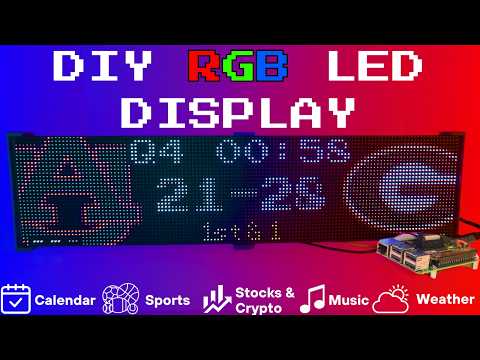
Setup video and feature walkthrough on Youtube (Outdated but still useful) :
Connect with ChuckBuilds
- Show support on Youtube: https://www.youtube.com/@ChuckBuilds
- Check out the write-up on my website: https://www.chuck-builds.com/led-matrix/
- Stay in touch on Instagram: https://www.instagram.com/ChuckBuilds/
- Want to chat? Reach out on the ChuckBuilds Discord: https://discord.com/invite/uW36dVAtcT
- Feeling Generous? Buy Me a Coffee : https://buymeacoffee.com/chuckbuilds
Special Thanks to:
- Hzeller @ GitHub for his groundwork on controlling an LED Matrix from the Raspberry Pi
- Basmilius @ GitHub for his free and extensive weather icons
- nvstly @ GitHub for their Stock and Crypto Icons
- ESPN for their sports API
- Yahoo Finance for their Stock API
- OpenWeatherMap for their Free Weather API
- Randomwire @ https://www.thingiverse.com/thing:5169867 for their 4mm Pixel Pitch LED Matrix Stand
⚠️ Breaking Changes
Important for users upgrading from older versions:
Script paths have been reorganized. If you have automation, cron jobs, or custom tooling that references old script paths, you must update them. See the Migration Guide for details.
Quick Reference:
- Installation scripts moved:
install_service.sh→scripts/install/install_service.sh - Permission scripts moved:
fix_cache_permissions.sh→scripts/fix_perms/fix_cache_permissions.sh
Full migration instructions: See MIGRATION_GUIDE.md
Core Features
Core Features
## Core Features Modular, rotating Displays that can be individually enabled or disabled per the user's needs with some configuration around display durations, teams, stocks, weather, timezones, and more. Displays include:Time and Weather
-
Real-time clock display (2x 64x32 Displays 4mm Pixel Pitch)
-
Current Weather, Daily Weather, and Hourly Weather Forecasts (2x 64x32 Displays 4mm Pixel Pitch)
-
Google Calendar event display (2x 64x32 Displays 4mm Pixel Pitch)
Sports Information
The system supports live, recent, and upcoming game information for multiple sports leagues:
-
NHL (Hockey) (2x 64x32 Displays 4mm Pixel Pitch)
-
NBA (Basketball)
-
MLB (Baseball) (2x 64x32 Displays 4mm Pixel Pitch)
-
NFL (Football) (2x 96x48 Displays 2.5mm Pixel Pitch)
-
NCAA Football (2x 96x48 Displays 2.5mm Pixel Pitch)
-
NCAA Men's Basketball
-
NCAA Men's Baseball
-
Soccer (Premier League, La Liga, Bundesliga, Serie A, Ligue 1, Liga Portugal, Champions League, Europa League, MLS)
-
(Note, some of these sports seasons were not active during development and might need fine tuning when games are active)
Financial Information
- Near real-time stock & crypto price updates
- Stock news headlines
- Customizable stock & crypto watchlists (2x 64x32 Displays 4mm Pixel Pitch)
Entertainment
- Music playback information from multiple sources:
- Spotify integration
- YouTube Music integration
- Album art display
- Now playing information with scrolling text (2x 64x32 Displays 4mm Pixel Pitch)
Custom Display Features
-
Custom Text display (2x 64x32 Displays 4mm Pixel Pitch)
-
Youtube Subscriber Count Display (2x 64x32 Displays 4mm Pixel Pitch)
-
Font testing Display (not in rotation)
Plugins
LEDMatrix uses a plugin-based architecture where all display functionality (except the core calendar) is implemented as plugins. All managers that were previously built into the core system are now available as plugins through the Plugin Store.
Plugin Store
The easiest way to discover and install plugins is through the Plugin Store in the LEDMatrix web interface:
- Open the web interface (
http://your-pi-ip:5000) - Navigate to the Plugin Manager tab
- Browse available plugins in the Plugin Store
- Click Install on any plugin you want
- Configure and enable plugins through the web UI
Installing 3rd-Party Plugins
You can also install plugins directly from GitHub repositories:
- Single Plugin: Install from any GitHub repository URL
- Registry/Monorepo: Install multiple plugins from a single repository
See the Plugin Store documentation for detailed installation instructions.
For plugin development, check out the Hello World Plugin repository as a starter template.
⚠️ Breaking Changes
Important for users upgrading from older versions:
-
Script Path Reorganization: Installation scripts have been moved to
scripts/install/:./install_service.sh→./scripts/install/install_service.sh./install_web_service.sh→./scripts/install/install_web_service.sh./configure_web_sudo.sh→./scripts/install/configure_web_sudo.sh
If you have automation, cron jobs, or custom tooling that references these scripts, you must update them to use the new paths. See the Migration Guide for complete details.
-
Built-in Managers Deprecated: The built-in managers (hockey, football, stocks, etc.) are now deprecated and have been moved to the plugin system. You must install replacement plugins from the Plugin Store in the web interface instead. The plugin system provides the same functionality with better maintainability and extensibility.
Hardware
Hardware Requirements
## Hardware RequirementsRaspberry Pi
- Raspberry Pi 3B or 4 (NOT RPi 5!)
Amazon Affiliate Link – Raspberry Pi 4 4GB
RGB Matrix Bonnet / HAT
- Adafruit RGB Matrix Bonnet/HAT – supports one “chain” of horizontally connected displays
- Adafruit Triple LED Matrix Bonnet – supports up to 3 vertical “chains” of horizontally connected displays (use
regular-pi1as hardware mapping) - Electrodragon RGB HAT – supports up to 3 vertical “chains”
- Seengreat Matrix Adapter Board – single-chain LED Matrix (use
regularas hardware mapping)
LED Matrix Panels
(2x in a chain recommended)
- Adafruit 64×32 – designed for 128×32 but works with dynamic scaling on many displays (pixel pitch is user preference)
- Waveshare 64×32 - Does not require E addressable pad
- Waveshare 92×46 – higher resolution, requires soldering the E addressable pad on the Adafruit RGB Bonnet to “8” OR toggling the DIP switch on the Adafruit Triple LED Matrix Bonnet (no soldering required!)
Amazon Affiliate Link – ChuckBuilds receives a small commission on purchases
Power Supply
- 5V 4A DC Power Supply (good for 2 -3 displays, depending on brightness and pixel density, you'll need higher amperage for more)
- 5V 10AM DC Power Supply (good for 6-8 displays, depending on brightness and pixel density)
Optional but recommended mod for Adafruit RGB Matrix Bonnet
- By soldering a jumper between pins 4 and 18, you can run a specialized command for polling the matrix display. This provides better brightness, less flicker, and better color.
- If you do the mod, we will use the default config with led-gpio-mapping=adafruit-hat-pwm, otherwise just adjust your mapping in config.json to adafruit-hat
- More information available: https://github.com/hzeller/rpi-rgb-led-matrix/tree/master?tab=readme-ov-file
Possibly required depending on the display you are using.
- Some LED Matrix displays require an "E" addressable line to draw the display properly. The 64x32 Adafruit display does NOT require the E addressable line, however the 92x46 Waveshare display DOES require the "E" Addressable line.
- Various ways to enable this depending on your Bonnet / HAT.
Your display will look like it is "sort of" working but still messed up.
or
or
How to set addressable E line on various HATs:
-
Adafruit Single Chain HATs
or
-
Adafruit Triple Chain HAT
-
ElectroDragon RGB LED Matrix Panel Drive Board
2 Matrix display with Rpi connected to Adafruit Single Chain HAT.
Mount / Stand options
Mount/Stand
I 3D printed stands to keep the panels upright and snug. STL Files are included in the Repo but are also available at https://www.thingiverse.com/thing:5169867 Thanks to "Randomwire" for making these for the 4mm Pixel Pitch LED Matrix.
Special Thanks for Rmatze for making:
- 3mm Pixel Pitch RGB Stand for 32x64 Display : https://www.thingiverse.com/thing:7149818
- 4mm Pixel Pitch RGB Stand for 32x64 Display : https://www.thingiverse.com/thing:7165993
These are not required and you can probably rig up something basic with stuff you have around the house. I used these screws: https://amzn.to/4mFwNJp (Amazon Affiliate Link)
Installation Steps
Preparing the Raspberry Pi
Preparing the Raspberry Pi
- Create RPI Image on a Micro-SD card (I use 16gb because I have it, size is not too important but I would use 8gb or more) using Raspberry Pi Imager
- Choose your Raspberry Pi (3B+ in my case)
- For Operating System (OS), choose "Other", then choose Raspbian OS (64-bit) Lite
- For Storage, choose your micro-sd card
- Press Next then Edit Settings
- Inside the OS Customization Settings, choose a name for your device. I use "ledpi". Choose a password, enter your WiFi information, and set your timezone.
- Under the Services Tab, make sure that SSH is enabled. I recommend using password authentication for ease of use - it is the password you just chose above.
- Then Click "Save" and Agree to Overwrite the Micro-SD card.
System Setup & Installation
System Setup & Installation
- Open PowerShell and ssh into your Raspberry Pi with ledpi@ledpi (or Username@Hostname)
ssh ledpi@ledpi
- Update repositories, upgrade raspberry pi OS, install git
sudo apt update && sudo apt upgrade -y
sudo apt install -y git python3-pip cython3 build-essential python3-dev python3-pillow scons
- Clone this repository:
git clone https://github.com/ChuckBuilds/LEDMatrix.git
cd LEDMatrix
- First-time installation (recommended)
chmod +x first_time_install.sh
sudo bash ./first_time_install.sh
This single script installs services, dependencies, configures permissions and sudoers, and validates the setup.
Configuration
Configuration
Configuration
Initial Setup
The system uses a template-based configuration approach to avoid Git conflicts during updates:
-
First-time setup: The previous "First_time_install.sh" script should've already copied the template to create your config.json:
-
Edit your configuration:
sudo nano config/config.json
or edit via web interface at http://ledpi:5000
- Having Issues?: Run the First Time Script again:
sudo ./first_time_install.sh
API Keys and Secrets
For sensitive settings like API keys:
- Copy the secrets template:
cp config/config_secrets.template.json config/config_secrets.json - Edit
config/config_secrets.jsonwith your API keys viasudo nano config/config_secrets.json - Ctrl + X to exit, Y to overwrite, Enter to Confirm
Automatic Configuration Migration
The system automatically handles configuration updates:
- New installations: Creates
config.jsonfrom the template automatically - Existing installations: Automatically adds new configuration options with default values when the system starts
- Backup protection: Creates a backup of your current config before applying updates
- No conflicts: Your custom settings are preserved while new options are added
Everything is configured via config/config.json and config/config_secrets.json. The config.json file is not tracked by Git to prevent conflicts during updates.
Calendar Display Configuration
Calendar Display Configuration
The calendar display module shows upcoming events from your Google Calendar. To configure it:
- In
config/config.json, add the following section:
{
    "calendar": {
        "enabled": true,
        "update_interval": 300,  // Update interval in seconds (default: 300)
        "max_events": 3,         // Maximum number of events to display
        "calendars": ["primary"] // List of calendar IDs to display
    }
}
-
Set up Google Calendar API access:
- Go to the Google Cloud Console
- Create a new project or select an existing one
- Enable the Google Calendar API
- Create OAuth 2.0 credentials:
- Application type: TV and Limited Input Device
- Download the credentials file as
credentials.json
- Place the
credentials.jsonfile in your project root directory
-
On first run, the application will:
- Provide a code to enter at https://www.google.com/device for Google authentication
- Request calendar read-only access
- Save the authentication token as
token.pickle
The calendar display will show:
- Event date and time
- Event title (wrapped to fit the display)
- Up to 3 upcoming events (configurable)
Odds Ticker Configuration
Odds Ticker Configuration
The odds ticker displays betting odds for upcoming sports games. To configure it:
- In
config/config.json, add the following section:
{
    "odds_ticker": {
        "enabled": true,
        "enabled_leagues": ["nfl", "nba", "mlb", "ncaa_fb"],
        "update_interval": 3600,
        "scroll_speed": 2,
        "scroll_delay": 0.05,
        "display_duration": 30
    }
}
Configuration Options
enabled: Enable/disable the odds ticker (default: false)enabled_leagues: Array of leagues to display (options: "nfl", "nba", "mlb", "ncaa_fb")update_interval: How often to fetch new odds data in seconds (default: 3600)scroll_speed: Pixels to scroll per update (default: 1)scroll_delay: Delay between scroll updates in seconds (default: 0.05)display_duration: How long to show each game in seconds (default: 30)
How it works:
- The ticker intelligently filters games based on the
"show_favorite_teams_only"setting within each individual sport's configuration block (e.g.,"nfl_scoreboard"). If set totruefor a sport, only favorite teams from that sport will appear in the ticker. - Games are sorted by the soonest start time.
Display Format
The odds ticker shows information in this format:
[12:00 PM] DAL -6.5 ML -200 O/U 47.5 vs NYG ML +175
Where:
[12:00 PM]- Game time in local timezoneDAL- Away team abbreviation-6.5- Spread for away team (negative = favored)ML -200- Money line for away teamO/U 47.5- Over/under totalvs- SeparatorNYG- Home team abbreviationML +175- Money line for home team
Team Logos
The ticker displays team logos alongside the text:
- Away team logo appears to the left of the text
- Home team logo appears to the right of the text
- Logos are automatically resized to fit the display
Requirements
- ESPN API access for odds data
- Team logo files in the appropriate directories:
assets/sports/nfl_logos/assets/sports/nba_logos/assets/sports/mlb_logos/assets/sports/ncaa_logos/
Troubleshooting
No Games Displayed:
- League Configuration: Ensure the leagues you want are enabled in their respective config sections
- Favorite Teams: If
show_favorite_teams_onlyis true, ensure you have favorite teams configured - API Access: Verify ESPN API is accessible and returning data
- Time Window: The ticker only shows games in the next 7 days
No Odds Data:
- API Timing: Odds may not be available immediately when games are scheduled
- League Support: Not all leagues may have odds data available
- API Limits: ESPN API may have rate limits or temporary issues
Performance Issues:
- Reduce scroll_speed: Try setting it to 1 instead of 2
- Increase scroll_delay: Try 0.1 instead of 0.05
- Check system resources: Ensure the Raspberry Pi has adequate resources
Testing
You can test the odds ticker functionality using:
python test_odds_ticker.py
This will:
- Initialize the odds ticker
- Fetch upcoming games and odds
- Display sample games
- Test the scrolling functionality
Stocks Configuration
Stocks Configuration
The stocks display shows real-time stock and crypto prices in a scrolling ticker format. To configure it:
- In
config/config.json, add the following section:
{
    "stocks": {
        "enabled": true,
        "symbols": ["AAPL", "MSFT", "GOOGL", "TSLA"],
        "update_interval": 600,
        "scroll_speed": 1,
        "scroll_delay": 0.01,
        "toggle_chart": false
    }
}
Configuration Options
enabled: Enable/disable the stocks display (default: false)symbols: Array of stock symbols to display (e.g., ["AAPL", "MSFT", "GOOGL"])update_interval: How often to fetch new stock data in seconds (default: 600)scroll_speed: Pixels to scroll per update (default: 1)scroll_delay: Delay between scroll updates in seconds (default: 0.01)toggle_chart: Enable/disable mini charts in the scrolling ticker (default: false)
Display Format
The stocks display shows information in this format:
[Logo] SYMBOL
       $PRICE
       +CHANGE (+PERCENT%)
Where:
[Logo]- Stock/crypto logo (if available)SYMBOL- Stock symbol (e.g., AAPL, MSFT)$PRICE- Current stock price+CHANGE- Price change (green for positive, red for negative)+PERCENT%- Percentage change
Chart Toggle Feature
The toggle_chart setting controls whether mini price charts are displayed alongside each stock:
"toggle_chart": true: Shows mini line charts on the right side of each stock display"toggle_chart": false: Shows only text information (symbol, price, change)
When charts are disabled, the text is centered more prominently on the display.
Crypto Support
The system also supports cryptocurrency symbols. Add crypto symbols to the symbols array:
{
    "stocks": {
        "enabled": true,
        "symbols": ["AAPL", "MSFT", "BTC-USD", "ETH-USD"],
        "update_interval": 600,
        "scroll_speed": 1,
        "scroll_delay": 0.01,
        "toggle_chart": false
    }
}
Requirements
- Yahoo Finance API access for stock data
- Stock/crypto logo files in the appropriate directories:
assets/stocks/ticker_icons/(for stocks)assets/stocks/crypto_icons/(for cryptocurrencies)
Troubleshooting
No Stock Data Displayed:
- Symbol Format: Ensure stock symbols are correct (e.g., "AAPL" not "apple")
- API Access: Verify Yahoo Finance API is accessible
- Market Hours: Some data may be limited during off-hours
- Symbol Validity: Check that symbols exist and are actively traded
Performance Issues:
- Reduce scroll_speed: Try setting it to 1 instead of higher values
- Increase scroll_delay: Try 0.05 instead of 0.01 for smoother scrolling
- Reduce symbols: Limit the number of symbols to improve performance
Testing
You can test the stocks functionality using:
python test/test_stock_toggle_chart.py
This will:
- Test the toggle_chart functionality
- Verify configuration loading
- Test cache clearing behavior
Football Configuration
Football Game-Based Configuration (NFL & NCAA FB)
For NFL and NCAA Football, the system now uses a game-based fetch approach instead of time-based windows. This is more practical for football since games are weekly and you want to show specific numbers of games rather than arbitrary time periods.
Configuration Options
Instead of using past_fetch_days and future_fetch_days, the system now uses:
fetch_past_games: Number of recent games to fetch (default: 1)fetch_future_games: Number of upcoming games to fetch (default: 1)
Example Configuration
{
    "nfl_scoreboard": {
        "enabled": true,
        "fetch_past_games": 1,
        "fetch_future_games": 1,
        "favorite_teams": ["TB", "DAL"]
    },
    "ncaa_fb_scoreboard": {
        "enabled": true,
        "fetch_past_games": 1,
        "fetch_future_games": 1,
        "favorite_teams": ["UGA", "AUB"]
    }
}
How It Works
fetch_past_games: 1: Shows the most recent game for your favorite teamsfetch_future_games: 1: Shows the next upcoming game for your favorite teamsfetch_future_games: 2: Shows the next two upcoming games (e.g., Week 1 and Week 2 matchups)
Benefits
- Predictable Results: Always shows exactly the number of games you specify
- Season Flexibility: Works well both during the season and in the off-season
- Future Planning: Can show games far in the future (e.g., Week 1 when it's 40 days away)
- Efficient: Only fetches the games you actually want to see
Use Cases
- During Season:
fetch_future_games: 1shows next week's game - Off-Season:
fetch_future_games: 1shows the first scheduled game (even if it's months away) - Planning:
fetch_future_games: 2shows the next two matchups for planning purposes
Music Display Configuration
Music Display Configuration
The Music Display module shows information about the currently playing track from either Spotify or YouTube Music (via the YouTube Music Desktop App companion server).
Setup Requirements:
-
Spotify:
- Requires a Spotify account (for API access).
- You need to register an application on the Spotify Developer Dashboard to get API credentials.
- Go to the dashboard, log in, and click "Create App".
- Give it a name (e.g., "LEDMatrix Display") and description.
- For the "Redirect URI", enter
http://127.0.0.1:8888/callback(or another unused port if 8888 is taken). You must add this exact URI in your app settings on the Spotify dashboard. - Note down the
Client IDandClient Secret.
-
YouTube Music (YTM):
- Requires the YouTube Music Desktop App (YTMD) to be installed and running on a computer on the same network as the Raspberry Pi.
- In YTMD settings, enable the "Companion Server" under Integration options. Note the URL it provides (usually
http://localhost:9863if running on the same machine, orhttp://<YTMD-Computer-IP>:9863if running on a different computer).
preferred_source Options:
"spotify": Only uses Spotify. Ignores YTM."ytm": Only uses the YTM Companion Server. Ignores Spotify.
Spotify Authentication for Music Display
If you are using the Spotify integration to display currently playing music, you will need to authenticate with Spotify. This project uses an authentication flow that requires a one-time setup. Due to how the display controller script may run with specific user permissions (even when using sudo), the following steps are crucial:
-
Initial Setup & Secrets:
- Ensure you have your Spotify API Client ID, Client Secret, and Redirect URI.
- The Redirect URI should be set to
http://127.0.0.1:8888/callbackin your Spotify Developer Dashboard. - Copy
config/config_secrets.template.jsontoconfig/config_secrets.json. - Edit
config/config_secrets.jsonand fill in your Spotify credentials under the"music"section:{ "music": { "SPOTIFY_CLIENT_ID": "YOUR_SPOTIFY_CLIENT_ID", "SPOTIFY_CLIENT_SECRET": "YOUR_SPOTIFY_CLIENT_SECRET", "SPOTIFY_REDIRECT_URI": "http://127.0.0.1:8888/callback" } }
-
Run the Authentication Script:
- Execute the authentication script using
sudo. This is important because it needs to create an authentication cache file (spotify_auth.json) that will be owned by root.sudo python3 src/authenticate_spotify.py - The script will output a URL. Copy this URL and paste it into a web browser on any device.
- Log in to Spotify and authorize the application.
- Your browser will be redirected to a URL starting with
http://127.0.0.1:8888/callback?code=.... It will likely show an error page like "This site can't be reached" – this is expected. - Copy the entire redirected URL from your browser's address bar.
- Paste this full URL back into the terminal when prompted by the script.
- If successful, it will indicate that token info has been cached.
- Execute the authentication script using
-
Adjust Cache File Permissions:
- The main display script (
display_controller.py), even when run withsudo, might operate with an effective User ID (e.g., UID 1 for 'daemon') that doesn't have permission to read thespotify_auth.jsonfile created byroot(which has -rw------- permissions by default). - To allow the display script to read this cache file, change its permissions:
sudo chmod 644 config/spotify_auth.json
This makes the file readable by all users, including the effective user of the display script.
- The main display script (
-
Run the Main Application:
- You should now be able to run your main display controller script using
sudo:sudo python3 display_controller.py - The Spotify client should now authenticate successfully using the cached token.
- You should now be able to run your main display controller script using
Why these specific permissions steps?
The authenticate_spotify.py script, when run with sudo, creates config/spotify_auth.json owned by root. If the main display_controller.py (also run with sudo) effectively runs as a different user (e.g., UID 1/daemon, as observed during troubleshooting), that user won't be able to read the root-owned file unless its permissions are relaxed (e.g., to 644). The chmod 644 command allows the owner (root) to read/write, and everyone else (including the daemon user) to read.
Youtube Music Authentication for Music Display
The system can display currently playing music information from YouTube Music Desktop (YTMD) via its Companion server API.
YouTube Display Configuration & API Key
The YouTube display module shows channel statistics for a specified YouTube channel. To configure it:
- In
config/config.json, add the following section:
{
    "youtube": {
        "enabled": true,
        "update_interval": 300  // Update interval in seconds (default: 300)
    }
}
- In
config/config_secrets.json, add your YouTube API credentials:
{
    "youtube": {
        "api_key": "YOUR_YOUTUBE_API_KEY",
        "channel_id": "YOUR_CHANNEL_ID"
    }
}
To get these credentials:
- Go to the Google Cloud Console
- Create a new project or select an existing one
- Enable the YouTube Data API v3
- Create credentials (API key)
- For the channel ID, you can find it in your YouTube channel URL or use the YouTube Data API to look it up
Setup:
-
Enable Companion Server in YTMD:
- In the YouTube Music Desktop application, go to
Settings->Integrations. - Enable the "Companion Server".
- Note the IP address and Port it's listening on (default is usually
http://localhost:9863), you'll need to know the local ip address if playing music on a device other than your rpi (probably are).
- In the YouTube Music Desktop application, go to
-
Configure
config/config.json:- Update the
musicsection in yourconfig/config.json:"music": { "enabled": true, "preferred_source": "ytm", "YTM_COMPANION_URL": "http://YOUR_YTMD_IP_ADDRESS:PORT", // e.g., "http://localhost:9863" or "http://192.168.1.100:9863" "POLLING_INTERVAL_SECONDS": 1 }
- Update the
-
Initial Authentication & Token Storage:
- The first time you run
python3 src/authenticate_ytm.pyafter enabling YTM, it will attempt to register itself with the YTMD Companion Server. - You will see log messages in the terminal prompting you to approve the "LEDMatrixController" application within the YouTube Music Desktop app. You typically have 30 seconds to do this.
- Once approved, an authentication token is saved to your
config/ytm_auth.json. - This ensures the
ledpiuser owns the config directory and file, and has the necessary write permissions.
- The first time you run
Troubleshooting:
- "No authorized companions" in YTMD: Ensure you've approved the
LEDMatrixControllerin YTMD settings after the first run. - Connection errors: Double-check the
YTM_COMPANION_URLinconfig.jsonmatches what YTMD's companion server is set to. - Ensure your firewall (Windows Firewall) allows YTM Desktop app to access local networks.
Before Running the Display
- To allow the script to properly access fonts, you need to set the correct permissions on your home directory:
sudo chmod o+x /home/ledpi - Replace ledpi with your actual username, if different.
You can confirm your username by executing:
whoami
Running the Display
From the project root directory:
sudo python3 display_controller.py
This will start the display cycle but only stays active as long as your ssh session is active.
Run on Startup Automatically with Systemd Service Installation
Run on Startup Automatically with Systemd Service Installation
The LEDMatrix can be installed as a systemd service to run automatically at boot and be managed easily. The service runs as root to ensure proper hardware timing access for the LED matrix.
Installing the Service (this is included in the first_time_install.sh)
- Make the install script executable:
chmod +x scripts/install/install_service.sh
- Run the install script with sudo:
sudo ./scripts/install/install_service.sh
The script will:
- Detect your user account and home directory
- Install the service file with the correct paths
- Enable the service to start on boot
- Start the service immediately
Managing the Service
The following commands are available to manage the service:
# Stop the display
sudo systemctl stop ledmatrix.service

# Start the display
sudo systemctl start ledmatrix.service

# Check service status
sudo systemctl status ledmatrix.service

# View logs
journalctl -u ledmatrix.service

# Disable autostart
sudo systemctl disable ledmatrix.service

# Enable autostart
sudo systemctl enable ledmatrix.service
Convenience Scripts
Convenience Scripts
Two convenience scripts are provided for easy service management:
start_display.sh- Starts the LED matrix display servicestop_display.sh- Stops the LED matrix display service
Make them executable with:
chmod +x start_display.sh stop_display.sh
Then use them to control the service:
sudo ./start_display.sh
sudo ./stop_display.sh
Web Interface Installation (V2)
The LEDMatrix system includes Web Interface V2 that runs on port 5000 and provides real-time display preview, configuration management, and on-demand display controls.
Installing the Web Interface Service
- Make the install script executable:
chmod +x install_web_service.sh
- Run the install script with sudo:
sudo ./install_web_service.sh
The script will:
- Copy the web service file to
/etc/systemd/system/ - Enable the service to start on boot
- Start the service immediately
- Show the service status
Web Interface Configuration
The web interface can be configured to start automatically with the main display service:
- In
config/config.json, ensure the web interface autostart is enabled:
{
    "web_display_autostart": true
}
- The web interface will now start automatically when:
- The system boots
- The
web_display_autostartsetting istruein your config
Accessing the Web Interface
Once installed, you can access the web interface at:
http://your-pi-ip:5000
Managing the Web Interface Service
# Check service status
sudo systemctl status ledmatrix-web.service

# View logs
journalctl -u ledmatrix-web.service -f

# Stop the service
sudo systemctl stop ledmatrix-web.service

# Start the service
sudo systemctl start ledmatrix-web.service

# Disable autostart
sudo systemctl disable ledmatrix-web.service

# Enable autostart
sudo systemctl enable ledmatrix-web.service
Web Interface Features
- Real-time Display Preview: See what's currently displayed on the LED matrix
- Configuration Management: Edit settings through a web interface
- On-Demand Controls: Start specific displays (weather, stocks, sports) on demand
- Service Management: Start/stop the main display service
- System Controls: Restart, update code, and manage the system
- API Metrics: Monitor API usage and system performance
- Logs: View system logs in real-time
Troubleshooting Web Interface
Web Interface Not Accessible After Restart:
- Check if the web service is running:
sudo systemctl status ledmatrix-web.service - Verify the service is enabled:
sudo systemctl is-enabled ledmatrix-web.service - Check logs for errors:
journalctl -u ledmatrix-web.service -f - Ensure
web_display_autostartis set totrueinconfig/config.json
Port 5000 Not Accessible:
- Check if the service is running on the correct port
- Verify firewall settings allow access to port 5000
- Check if another service is using port 5000
Service Fails to Start:
- Check Python dependencies are installed
- Verify the virtual environment is set up correctly
- Check file permissions and ownership
Information
Display Settings from RGBLEDMatrix Library
Display Settings
If you are copying my setup, you can likely leave this alone.
- hardware: Configures how the matrix is driven.
- rows, cols, chain_length: Physical panel configuration.
- brightness: Display brightness (0–100).
- hardware_mapping: Use "adafruit-hat-pwm" for Adafruit bonnet WITH the jumper mod. Remove -pwm if you did not solder the jumper.
- pwm_bits, pwm_dither_bits, pwm_lsb_nanoseconds: Affect color fidelity.
- limit_refresh_rate_hz: Cap refresh rate for better stability.
- runtime:
- gpio_slowdown: Tweak this depending on your Pi model. Match it to the generation (e.g., Pi 3 → 3, Pi 4 -> 4).
- display_durations:
- Control how long each display module stays visible in seconds. For example, if you want more focus on stocks, increase that value.
Modules
- Each module (weather, stocks, crypto, calendar, etc.) has enabled, update_interval, and often display_format settings.
- Sports modules also support test_mode, live_update_interval, and favorite_teams.
- Logos are loaded from the logo_dir path under assets/sports/...
Cache Information
Persistent Caching Setup
The LEDMatrix system uses persistent caching to improve performance and reduce API calls. When running with sudo, the system needs a persistent cache directory that survives restarts.
First-Time Setup: Run the setup script to create a persistent cache directory:
chmod +x setup_cache.sh
./setup_cache.sh
This will:
- Create
/var/cache/ledmatrix/directory - Set proper ownership to your user account
- Set permissions to allow the daemon user (which the system runs as) to write
- Test writability for both your user and the daemon user
If You Still See Cache Warnings: If you see warnings about using temporary cache directory, run the permissions fix:
chmod +x scripts/fix_perms/fix_cache_permissions.sh
sudo ./scripts/fix_perms/fix_cache_permissions.sh
Manual Setup: If you prefer to set up manually:
sudo mkdir -p /var/cache/ledmatrix
sudo chown $USER:$USER /var/cache/ledmatrix
sudo chmod 777 /var/cache/ledmatrix
Cache Locations (in order of preference):
~/.ledmatrix_cache/(user's home directory) - Most persistent/var/cache/ledmatrix/(system cache directory) - Persistent across restarts/opt/ledmatrix/cache/(alternative persistent location)/tmp/ledmatrix_cache/(temporary directory) - NOT persistent
Note: If the system falls back to /tmp/ledmatrix_cache/, you'll see a warning message and the cache will not persist across restarts.
Caching System
The LEDMatrix system includes a robust caching mechanism to optimize API calls and reduce network traffic:
Cache Location
- Default cache directory:
/tmp/ledmatrix_cache - Cache files are stored with proper permissions (755 for directories, 644 for files)
- When running as root/sudo, cache ownership is automatically adjusted to the real user
Cached Data Types
- Weather data (current conditions and forecasts)
- Stock prices and market data
- Stock news headlines
- ESPN game information
Cache Behavior
- Data is cached based on update intervals defined in
config.json - Cache is automatically invalidated when:
- Update interval has elapsed
- Market is closed (for stock data)
- Data has changed significantly
- Failed API calls fall back to cached data when available
- Cache files use atomic operations to prevent corruption
Cache Management
- Cache files are automatically created and managed
- No manual intervention required
- Cache directory is created with proper permissions on first run
- Temporary files are used for safe updates
- JSON serialization handles all data types including timestamps
Date Format Configuration
Date Format Configuration
You can customize the date format for upcoming games across all sports displays. The use_short_date_format setting in config/config.json under the display section controls this behavior.
"use_short_date_format": true: Displays dates in a short, numerical format (e.g., "8/30")."use_short_date_format": false(Default): Displays dates in a more descriptive format with an ordinal suffix (e.g., "Aug 30th").
Example config.json
"display": {
    "hardware": {
        ...
    },
    "runtime": {
        ...
    },
    "display_durations": {
        ...
    },
    "use_short_date_format": false // Set to true for "8/30" format
},
Passwordless Sudo for Web Interface Actions
Granting Passwordless Sudo Access for Web Interface Actions
The web interface needs to run certain commands with sudo (e.g., reboot, systemctl start/stop/enable/disable ledmatrix.service, python display_controller.py). To avoid needing to enter a password for these actions through the web UI, you can configure the sudoers file to allow the user running the Flask application to execute these specific commands without a password.
- Shortcut to automate the below steps:
chmod +x configure_web_sudo.shthen./configure_web_sudo.sh
Manual Method:
WARNING: Be very careful when editing the sudoers file. Incorrect syntax can lock you out of sudo access.
-
Identify the user: Determine which user is running the
web_interface.pyscript. Often, this might be the default user likepion a Raspberry Pi, or a dedicated user you've set up. -
Open the sudoers file for editing: Use the
visudocommand, which locks the sudoers file and checks for syntax errors before saving.sudo visudo -
Add the permission lines: Scroll to the bottom of the file and add lines similar to the following. Replace
your_flask_userwith the actual username running the Flask application. You'll need to specify the full paths to the commands. You can find these using thewhichcommand (e.g.,which python,which systemctl,which reboot).# Allow your_flask_user to run specific commands without a password for the LED Matrix web interface your_flask_user ALL=(ALL) NOPASSWD: /sbin/reboot your_flask_user ALL=(ALL) NOPASSWD: /bin/systemctl start ledmatrix.service your_flask_user ALL=(ALL) NOPASSWD: /bin/systemctl stop ledmatrix.service your_flask_user ALL=(ALL) NOPASSWD: /bin/systemctl enable ledmatrix.service your_flask_user ALL=(ALL) NOPASSWD: /bin/systemctl disable ledmatrix.service your_flask_user ALL=(ALL) NOPASSWD: /usr/bin/python /path/to/your/display_controller.py your_flask_user ALL=(ALL) NOPASSWD: /bin/bash /path/to/your/stop_display.sh- Important:
- Replace
your_flask_userwith the correct username. - Replace
/path/to/your/display_controller.pywith the absolute path to yourdisplay_controller.pyscript. - Replace
/path/to/your/stop_display.shwith the absolute path to yourstop_display.shscript. - The paths to
python,systemctl,reboot, andbashmight vary slightly depending on your system. Usewhich <command>to find the correct paths if you are unsure. For example,which pythonmight output/usr/bin/python3- use that full path.
- Replace
- Important:
-
Save and Exit:
- If you're in
nano(common default forvisudo):Ctrl+X, thenYto confirm, thenEnter. - If you're in
vim:Esc, then:wq, thenEnter.
visudowill check the syntax. If there's an error, it will prompt you to re-edit or quit. Do not quit without fixing errors if possible. - If you're in
-
Test: After saving, try running one of the specified commands as
your_flask_userusingsudofrom a regular terminal session to ensure it doesn't ask for a password. For example:sudo -u your_flask_user sudo /sbin/reboot(Don't actually reboot if you're not ready, but it should proceed without a password prompt if configured correctly. You can test with a less disruptive command like
sudo -u your_flask_user sudo systemctl status ledmatrix.service).
Security Considerations:
Granting passwordless sudo access, even for specific commands, has security implications. Ensure that the scripts and commands allowed are secure and cannot be easily exploited. The web interface itself should also be secured if it's exposed to untrusted networks.
For display_controller.py and stop_display.sh, ensure their file permissions restrict write access to only trusted users, preventing unauthorized modification of these scripts which run with elevated privileges.
Web Interface V2 (simplified quick start)
1) Run the helper (does the above and starts the server):
python3 start_web_v2.py
2) Start the web UI v2
python web_interface_v2.py
3) Autostart (recommended)
Set "web_display_autostart": true in config/config.json.
Ensure your systemd service calls start_web_conditionally.py (installed by install_service.sh).
4) Permissions (optional but recommended)
- Add the service user to
systemd-journalfor viewing logs without sudo. - Configure passwordless sudo for actions (start/stop service, reboot, shutdown) if desired.
- Required for web Ui actions, look in the section above for the commands to run (chmod +x scripts/install/configure_web_sudo.sh & sudo ./scripts/install/configure_web_sudo.sh)
Final Notes
- Most configuration is done via config/config.json
- Refresh intervals for sports/weather/stocks are customizable
- A caching system reduces API strain and helps ensure the display doesn't hammer external services (and ruin it for everyone)
- Font files should be placed in assets/fonts/
- You can test each module individually for debugging
##What's Next?
- Adding MQTT/HomeAssistant integration