mirror of
https://github.com/ChuckBuilds/LEDMatrix.git
synced 2026-04-10 21:03:01 +00:00

873 lines
36 KiB
Markdown
873 lines
36 KiB
Markdown
# LEDMatrix
|
||
## Welcome to LEDMatrix!
|
||
Welcome to the LEDMatrix Project! This open-source project enables you to run an information-rich display on a Raspberry Pi connected to an LED RGB Matrix panel. Whether you want to see your calendar, weather forecasts, sports scores, stock prices, or any other information at a glance, LEDMatrix brings it all together.
|
||
|
||
### About This Project
|
||
|
||
LEDMatrix is a constantly evolving project that I'm building to create a customizable information display. The project is designed to be modular and extensible, with a plugin-based architecture that makes it easy to add new features and displays.
|
||
|
||
**This project is open source and supports third-party plugin development.** I believe that great projects get better when more people are involved, and I'm excited to see what the community can build together. Whether you want to contribute to the core project, develop your own plugins, or just use and enjoy LEDMatrix, you're welcome here!
|
||
|
||
### A Note from the ChuckBuilds
|
||
I'm very new to all of this and am *heavily* relying on AI development tools to create this project. This means I'm learning as I go, and I'm grateful for your patience and feedback as the project continues to evolve and improve.
|
||
|
||
I'm trying to be open to constructive criticism and support, as long as it's a realistic ask and aligns with my priorities on this project. If you have ideas for improvements, find bugs, or want to add features to the base project, please don't hesitate to reach out on Discord or submit a pull request. Similarly, if you want to develop a plugin of your own, please do so! I'd love to see what you create.
|
||
|
||
|
||
### Setup video and feature walkthrough on Youtube (Outdated but still useful) :
|
||
[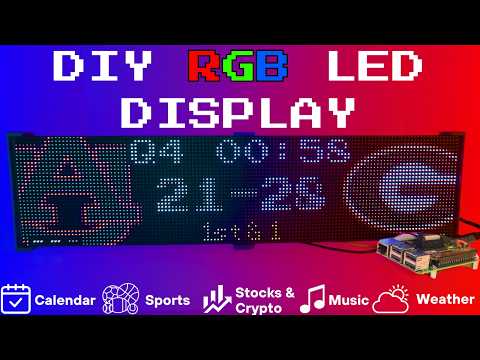](https://www.youtube.com/watch?v=_HaqfJy1Y54)
|
||
|
||
-----------------------------------------------------------------------------------
|
||
### Connect with ChuckBuilds
|
||
|
||
- Show support on Youtube: https://www.youtube.com/@ChuckBuilds
|
||
- Check out the write-up on my website: https://www.chuck-builds.com/led-matrix/
|
||
- Stay in touch on Instagram: https://www.instagram.com/ChuckBuilds/
|
||
- Want to chat? Reach out on the ChuckBuilds Discord: https://discord.com/invite/uW36dVAtcT
|
||
- Feeling Generous? Consider sponsoring this project or sending a donation (these AI credits aren't cheap!)
|
||
|
||
-----------------------------------------------------------------------------------
|
||
|
||
### Special Thanks to:
|
||
- [Hzeller](https://github.com/hzeller/rpi-rgb-led-matrix) for his groundwork on controlling an LED Matrix from the Raspberry Pi
|
||
- [Cursor](https://cursor.com/home) for making this project possible
|
||
- [CodeRabbit](https://github.com/coderabbitai) for fixing my PR's
|
||
- Everyone involved in this project for their patience, input, and support
|
||
|
||
-----------------------------------------------------------------------------------
|
||
|
||
## Core Features
|
||
|
||
<details>
|
||
<summary>Core Features</summary>
|
||
The following plugins are available inside of the LEDMatrix project. These modular, rotating Displays that can be individually enabled or disabled per the user's needs with some configuration around display durations, teams, stocks, weather, timezones, and more. Displays include:
|
||
|
||
### Time and Weather
|
||
- Real-time clock display (2x 64x32 Displays 4mm Pixel Pitch)
|
||

|
||
|
||
|
||
- Current Weather, Daily Weather, and Hourly Weather Forecasts (2x 64x32 Displays 4mm Pixel Pitch)
|
||

|
||

|
||

|
||
|
||
|
||
- Google Calendar event display (2x 64x32 Displays 4mm Pixel Pitch)
|
||

|
||
|
||
|
||
|
||
### Sports Information
|
||
The system supports live, recent, and upcoming game information for multiple sports leagues:
|
||
- NHL (Hockey) (2x 64x32 Displays 4mm Pixel Pitch)
|
||

|
||

|
||

|
||
|
||
- NBA (Basketball)
|
||
- MLB (Baseball) (2x 64x32 Displays 4mm Pixel Pitch)
|
||

|
||
|
||
- NFL (Football) (2x 96x48 Displays 2.5mm Pixel Pitch)
|
||
<img width="2109" height="541" alt="image" src="https://github.com/user-attachments/assets/d10212c9-0d45-4f87-b61d-0a33afb9f160" />
|
||
- NCAA Football (2x 96x48 Displays 2.5mm Pixel Pitch)
|
||
<img width="2417" height="610" alt="image" src="https://github.com/user-attachments/assets/9be92869-ee29-4809-9337-69977f228e23" />
|
||
|
||
- NCAA Men's Basketball
|
||
- NCAA Men's Baseball
|
||
- Soccer (Premier League, La Liga, Bundesliga, Serie A, Ligue 1, Liga Portugal, Champions League, Europa League, MLS)
|
||
- (Note, some of these sports seasons were not active during development and might need fine tuning when games are active)
|
||
|
||
|
||
### Financial Information
|
||
- Near real-time stock & crypto price updates
|
||
- Stock news headlines
|
||
- Customizable stock & crypto watchlists (2x 64x32 Displays 4mm Pixel Pitch)
|
||

|
||

|
||
|
||
|
||
|
||
### Entertainment
|
||
- Music playback information from multiple sources:
|
||
- Spotify integration
|
||
- YouTube Music integration
|
||
- Album art display
|
||
- Now playing information with scrolling text (2x 64x32 Displays 4mm Pixel Pitch)
|
||

|
||

|
||
|
||
|
||
|
||
### Custom Display Features
|
||
- Custom Text display (2x 64x32 Displays 4mm Pixel Pitch)
|
||

|
||
|
||
- Youtube Subscriber Count Display (2x 64x32 Displays 4mm Pixel Pitch)
|
||

|
||
|
||
</details>
|
||
|
||
-----------------------------------------------------------------------------------
|
||
## Hardware
|
||
|
||
<details>
|
||
<summary>Hardware Requirements</summary>
|
||
|
||
## Hardware Requirements
|
||
|
||
| ⚠️ IMPORTANT |
|
||
| :--- |
|
||
| This project can be finnicky! RGB LED Matrix displays are not built the same or to a high-quality standard. We have seen many displays arrive dead or partially working in our discord. Please purchase from a reputable vendor. |
|
||
|
||
### Raspberry Pi
|
||
- Raspberry Pi Zero's don't have enough processing power for this project and the Pi 5 is unsupported due to new GPIO output.
|
||
- **Raspberry Pi 3B or 4 (NOT RPi 5!)**
|
||
[Amazon Affiliate Link – Raspberry Pi 4 4GB RAM](https://amzn.to/4dJixuX)
|
||
[Amazon Affiliate Link – Raspberry Pi 4 8GB RAM](https://amzn.to/4qbqY7F)
|
||
|
||
|
||
### RGB Matrix Bonnet / HAT
|
||
- [Adafruit RGB Matrix Bonnet/HAT](https://www.adafruit.com/product/3211) – supports one “chain” of horizontally connected displays
|
||
- [Adafruit Triple LED Matrix Bonnet](https://www.adafruit.com/product/6358) – supports up to 3 vertical “chains” of horizontally connected displays *(use `regular-pi1` as hardware mapping)*
|
||
- [Electrodragon RGB HAT](https://www.electrodragon.com/product/rgb-matrix-panel-drive-board-raspberry-pi/) – supports up to 3 vertical “chains”
|
||
- [Seengreat Matrix Adapter Board](https://amzn.to/3KsnT3j) – single-chain LED Matrix *(use `regular` as hardware mapping)*
|
||
|
||
### LED Matrix Panels
|
||
(2x in a horizontal chain is recommended)
|
||
- [Adafruit 64×32](https://www.adafruit.com/product/2278) – designed for 128×32 but works with dynamic scaling on many displays (pixel pitch is user preference)
|
||
- [Waveshare 64×32](https://amzn.to/3Kw55jK) - Does not require E addressable pad
|
||
- [Waveshare 92×46](https://amzn.to/4pQdezE) – higher resolution, requires soldering the **E addressable pad** on the [Adafruit RGB Bonnet](https://www.adafruit.com/product/3211) to “8” **OR** toggling the DIP switch on the Adafruit Triple LED Matrix Bonnet *(no soldering required!)*
|
||
> Amazon Affiliate Link – ChuckBuilds receives a small commission on purchases
|
||
|
||
### Power Supply
|
||
- [5V 4A DC Power Supply](https://www.adafruit.com/product/658) (good for 2 -3 displays, depending on brightness and pixel density, you'll need higher amperage for more)
|
||
- [5V 10A DC Power Supply](https://amzn.to/3IKlYqe) (good for 6-8 displays, depending on brightness and pixel density)
|
||
|
||
## Optional but recommended mod for Adafruit RGB Matrix Bonnet
|
||
- By soldering a jumper between pins 4 and 18, you can run a specialized command for polling the matrix display. This provides better brightness, less flicker, and better color.
|
||
- If you do the mod, we will use the default config with led-gpio-mapping=adafruit-hat-pwm, otherwise just adjust your mapping in config.json to adafruit-hat
|
||
- More information available: https://github.com/hzeller/rpi-rgb-led-matrix/tree/master?tab=readme-ov-file
|
||

|
||
|
||
## Possibly required depending on the display you are using.
|
||
- Some LED Matrix displays require an "E" addressable line to draw the display properly. The [64x32 Adafruit display](https://www.adafruit.com/product/2278) does NOT require the E addressable line, however the [92x46 Waveshare display](https://amzn.to/4pQdezE) DOES require the "E" Addressable line.
|
||
- Various ways to enable this depending on your Bonnet / HAT.
|
||
|
||
Your display will look like it is "sort of" working but still messed up.
|
||
<img width="841" height="355" alt="image" src="https://github.com/user-attachments/assets/7b8cfa98-270c-4c41-9cdc-146535eec32f" />
|
||
or
|
||
<img width="924" height="316" alt="image" src="https://github.com/user-attachments/assets/fda59057-faca-401b-8d55-f0e360cadbdf" />
|
||
or
|
||
<img width="1363" height="703" alt="image" src="https://github.com/user-attachments/assets/0e833721-1690-4446-a6a9-7c48eed7a633" />
|
||
|
||
How to set addressable E line on various HATs:
|
||
|
||
- Adafruit Single Chain HATs
|
||
<img width="719" height="958" alt="IMG_5228" src="https://github.com/user-attachments/assets/b30e839c-6fc9-4129-a99c-0f4eaf62c89d" />
|
||
or
|
||
<img width="349" height="302" alt="image" src="https://github.com/user-attachments/assets/2175fa40-98a8-4da7-bcd3-d6b1714e33d2" />
|
||
|
||
- Adafruit Triple Chain HAT
|
||

|
||
|
||
- ElectroDragon RGB LED Matrix Panel Drive Board
|
||

|
||
|
||
|
||
|
||
|
||
|
||
2 Matrix display with Rpi connected to Adafruit Single Chain HAT.
|
||

|
||
|
||
|
||
</details>
|
||
|
||
<details>
|
||
|
||
<summary>Mount / Stand options</summary>
|
||
|
||
|
||
## Mount/Stand
|
||
I 3D printed stands to keep the panels upright and snug. STL Files are included in the Repo but are also available at https://www.thingiverse.com/thing:5169867 Thanks to "Randomwire" for making these for the 4mm Pixel Pitch LED Matrix.
|
||
|
||
Special Thanks for Rmatze for making:
|
||
- 3mm Pixel Pitch RGB Stand for 32x64 Display : https://www.thingiverse.com/thing:7149818
|
||
- 4mm Pixel Pitch RGB Stand for 32x64 Display : https://www.thingiverse.com/thing:7165993
|
||
|
||
These are not required and you can probably rig up something basic with stuff you have around the house. I used these screws: https://amzn.to/4mFwNJp (Amazon Affiliate Link)
|
||
|
||
</details>
|
||
|
||
-----------------------------------------------------------------------------------
|
||
## Installation Steps
|
||
|
||
<details>
|
||
|
||
<summary>Preparing the Raspberry Pi</summary>
|
||
|
||
# Preparing the Raspberry Pi
|
||
|
||
| ⚠️ IMPORTANT |
|
||
| :--- |
|
||
| It is required to use the **NEW** Raspberry Pi Imager tool. If your tool doesn't look like my screenshots, be sure to update it. |
|
||
|
||
1. Create RPI Image on a Micro-SD card (I use whatever I have laying around, size is not too important but I would use 8gb or more) using [Raspberry Pi Imager](https://www.raspberrypi.com/software/)
|
||
|
||
2. Choose your Raspberry Pi (3B+ in my case)
|
||
|
||
<img width="512" height="361" alt="Step 1 rpi" src="https://github.com/user-attachments/assets/4d42961c-97f3-46d6-8e3f-b4ac04615ec7" />
|
||
|
||
3. For Operating System (OS), choose "Other"
|
||
|
||
<img width="512" height="361" alt="Step 2 Other " src="https://github.com/user-attachments/assets/166a22e8-8067-48df-9f80-50c91f573356" />
|
||
|
||
5. Then choose Raspbian OS (64-bit) Lite (Trixie)
|
||
|
||
<img width="512" height="361" alt="Step 4 Trixie Lite 64" src="https://github.com/user-attachments/assets/3b8590ce-b810-4dfe-9253-26e0d4f8ed1e" />
|
||
|
||
6. For Storage, choose your micro-sd card
|
||
|
||
| ⚠️ IMPORTANT |
|
||
| :--- |
|
||
| Make sure it's the correct drive! Data will be erased! |
|
||
|
||
<img width="512" height="361" alt="Step 5 Select storage" src="https://github.com/user-attachments/assets/d2840c6b-2a07-45a4-bfd4-2a73ee790e87" />
|
||
|
||
7. Choose the hostname of the device. This will be often used to access the web-ui and will be the name of the device on your network. I recommend "ledpi".
|
||
|
||
<img width="512" height="361" alt="Step 6 name storage" src="https://github.com/user-attachments/assets/e782ef1e-49c6-4483-9791-96f34c27235d" />
|
||
|
||
8. Choose your timezone and keyboard layout.
|
||
|
||
<img width="512" height="361" alt="Step 7 Choose Timezone" src="https://github.com/user-attachments/assets/6cf38b5a-ec72-42af-93b8-e6f5b0874fa6" />
|
||
|
||
9. Set your username and password. This is your "root" password and is important, make sure you remember it! We will use it to access the Raspberry Pi via SSH.
|
||
|
||
<img width="512" height="361" alt="Step 8 set password for root" src="https://github.com/user-attachments/assets/5a3f9eb2-b2fd-4db3-8c51-490fff091fd4" />
|
||
|
||
10. (Optional) Choose your Wi-fi network and enter wifi password. This can be changed in the future. This is also optional if you are going to connect it via ethermet.
|
||
|
||
<img width="512" height="361" alt="Step 9 choose network" src="https://github.com/user-attachments/assets/0ac9c69b-d29c-454f-a6ed-ffdaa778729d" />
|
||
|
||
11. Enable SSH and opt for "Use Password Authentication". You can use public key auth if you know how but for the sake of new folks, let's use the password that we chose in Step 9.
|
||
|
||
<img width="512" height="361" alt="Step 10 enable Ssh and choose password authentication" src="https://github.com/user-attachments/assets/a2df9994-8be5-4785-9f4c-a2888edb5c78" />
|
||
|
||
12. Disable Raspberry Pi Connect. It's a VPN / Remote Connection tool built into Raspberry Pi, it seems like there might be a subscription? Not sure but I am not using it.
|
||
|
||
<img width="512" height="361" alt="step 11 disable RPI connect" src="https://github.com/user-attachments/assets/63808069-b620-49db-a102-76e2b75ad055" />
|
||
|
||
13. Double check your settings then confirm by clicking "Write".
|
||
|
||
<img width="512" height="361" alt="step 12 write to disk" src="https://github.com/user-attachments/assets/77a0d193-2953-4c52-971c-3069f55ac70e" />
|
||
|
||
14. Final warning to be SURE that you have the correct micro-sd card inserted and selected as all data on the drive will be erased.
|
||
|
||
<img width="512" height="361" alt="Step 13 be very sure you are using the right drive" src="https://github.com/user-attachments/assets/9a46447e-3be6-4838-9114-27415869a3c6" />
|
||
|
||
You're done with preparing the Operating System. Once the Raspberry Pi Imager has finished writing to the micro-sd card it will let you know it is safe to eject. Eject the micro-sd card and plug it into the Raspberry Pi and turn it on.
|
||
</details>
|
||
|
||
<details>
|
||
|
||
<summary>System Setup & Installation</summary>
|
||
|
||
# System Setup & Installation
|
||
|
||
Once your Raspberry Pi has turned on and connected to your wifi (check your router's dhcp leases) or just give it a few minutes after plugging it in. We will connect via ssh.
|
||
|
||
Secure Shell (SSH) is a way to connect to the device and execute commands. On Windows, I recommend using Powershell. On MacOS or Linux, I recommend using Terminal.
|
||
|
||
1. SSH into your Raspberry Pi:
|
||
```bash
|
||
ssh ledpi@ledpi
|
||
```
|
||
The format "username@hostname" is coincidentally the same for this project (which is fine) but if you changed the username, hostname, or your router's DNS doesn't recognize the hostname you would use "username@ipaddress". You can skip the username and just enter "ssh hostname" or "ssh ipaddress" and it will prompt you for a username.
|
||
|
||
## Quick Install (Recommended)
|
||
|
||
Paste this single command into SSH using <kbd>Ctrl</kbd>+<kbd>Shift</kbd>+<kbd>V</kbd> on Windows or <kbd>Shift</kbd>+<kbd>Command</kbd>+<kbd>V</kbd> on Mac.
|
||
|
||
> [!TIP]
|
||
> Terminal can be funky about pasting with just <kbd>Ctrl</kbd>+<kbd>V</kbd>, by right click -> paste or using <kbd>Ctrl</kbd>+<kbd>Shift</kbd>+<kbd>V</kbd> you will be able to paste without additional unwanted characters.
|
||
|
||
```bash
|
||
curl -fsSL https://raw.githubusercontent.com/ChuckBuilds/LEDMatrix/main/scripts/install/one-shot-install.sh | bash
|
||
```
|
||
|
||
This one-shot installer will automatically:
|
||
- Check system prerequisites (network, disk space, sudo access)
|
||
- Install required system packages (git, python3, build tools, etc.)
|
||
- Clone or update the LEDMatrix repository
|
||
- Run the complete first-time installation script
|
||
|
||
The installation process typically takes 10-30 minutes depending on your internet connection and Pi model. All errors are reported explicitly with actionable fixes.
|
||
|
||
**Note:** The script is safe to run multiple times and will handle existing installations gracefully.
|
||
|
||
|
||
|
||
|
||
<details>
|
||
<summary>Manual Installation (Alternative)</summary>
|
||
|
||
If you prefer to install manually or the one-shot installer doesn't work for your setup:
|
||
|
||
1. SSH into your Raspberry Pi:
|
||
```bash
|
||
ssh ledpi@ledpi
|
||
```
|
||
|
||
2. Update repositories, upgrade Raspberry Pi OS, and install prerequisites:
|
||
```bash
|
||
sudo apt update && sudo apt upgrade -y
|
||
sudo apt install -y git python3-pip cython3 build-essential python3-dev python3-pillow scons
|
||
```
|
||
|
||
3. Clone this repository:
|
||
```bash
|
||
git clone https://github.com/ChuckBuilds/LEDMatrix.git
|
||
cd LEDMatrix
|
||
```
|
||
|
||
4. Run the first-time installation script:
|
||
```bash
|
||
chmod +x first_time_install.sh
|
||
sudo bash ./first_time_install.sh
|
||
```
|
||
|
||
This single script installs services, dependencies, configures permissions and sudoers, and validates the setup.
|
||
|
||
</details>
|
||
|
||
</details>
|
||
|
||
|
||
## Configuration
|
||
|
||
<details>
|
||
|
||
<summary>Configuration</summary>
|
||
|
||
## Configuration
|
||
|
||
### Initial Setup
|
||
|
||
For most settings I recommend using the web interface:
|
||
Edit the project via the web interface at http://[IP ADDRESS or HOSTNAME]:5000 or http://ledpi:5000 .
|
||
|
||
If you need to manually edit your config file, you can follow the steps below:
|
||
<details>
|
||
<summary>Manual Config.json editing </summary>
|
||
|
||
1. **First-time setup**:
|
||
The previous "First_time_install.sh" script should've already copied the template to create your config.json:
|
||
|
||
2. **Edit your configuration**:
|
||
```bash
|
||
sudo nano config/config.json
|
||
```
|
||
</details>
|
||
|
||
|
||
### Automatic Configuration Migration
|
||
|
||
The system automatically handles configuration updates:
|
||
- **New installations**: Creates `config.json` from the template automatically
|
||
- **Existing installations**: Automatically adds new configuration options with default values when the system starts
|
||
- **Backup protection**: Creates a backup of your current config before applying updates
|
||
- **No conflicts**: Your custom settings are preserved while new options are added
|
||
|
||
Everything is configured via `config/config.json` and `config/config_secrets.json` and are not tracked by Git to prevent conflicts during updates.
|
||
|
||
</details>
|
||
|
||
|
||
## Running the Display
|
||
|
||
<details>
|
||
<summary>Recommended: Use Web UI Quick Actions</summary>
|
||
|
||
I recommend using the web-ui "Quick Actions" to control the Display.
|
||
|
||
<img width="2009" height="201" alt="image" src="https://github.com/user-attachments/assets/49e4db32-05f7-43b4-b7dd-7be7aa28994c" />
|
||
|
||
</details>
|
||
|
||
|
||
## Plugins
|
||
|
||
<details>
|
||
LEDMatrix uses a plugin-based architecture where all display functionality (except the core calendar) is implemented as plugins. All managers that were previously built into the core system are now available as plugins through the Plugin Store.
|
||
|
||
### Plugin Store
|
||
See the [Plugin Store documentation](https://github.com/ChuckBuilds/ledmatrix-plugins) for detailed installation instructions.
|
||
|
||
The easiest way to discover and install plugins is through the **Plugin Store** in the LEDMatrix web interface:
|
||
|
||
1. Open the web interface (`http://your-pi-ip:5000`)
|
||
2. Navigate to the **Plugin Manager** tab
|
||
3. Browse available plugins in the Plugin Store
|
||
4. Click **Install** on any plugin you want
|
||
5. Configure and enable plugins through the web UI
|
||
|
||
### Installing 3rd-Party Plugins
|
||
|
||
You can also install plugins directly from GitHub repositories:
|
||
|
||
- **Single Plugin**: Install from any GitHub repository URL
|
||
- **Registry/Monorepo**: Install multiple plugins from a single repository
|
||
|
||
See the [Plugin Store documentation](https://github.com/ChuckBuilds/ledmatrix-plugins) for detailed installation instructions.
|
||
|
||
For plugin development, check out the [Hello World Plugin](https://github.com/ChuckBuilds/ledmatrix-hello-world) repository as a starter template.
|
||
|
||
2. **Built-in Managers Deprecated**: The built-in managers (hockey, football, stocks, etc.) are now deprecated and have been moved to the plugin system. **You must install replacement plugins from the Plugin Store** in the web interface instead. The plugin system provides the same functionality with better maintainability and extensibility.
|
||
</details>
|
||
|
||
## Detailed Information
|
||
|
||
<details>
|
||
|
||
<summary>Display Settings from RGBLEDMatrix Library</summary>
|
||
|
||
## Display Settings
|
||
|
||
If you are copying my exact setup, you can likely leave the defaults alone. However, if you have different hardware or want to customize the display behavior, these settings allow you to fine-tune the LED matrix configuration.
|
||
|
||
The display settings are located in `config/config.json` under the `"display"` key and are organized into three main sections: `hardware`, `runtime`, and `display_durations`.
|
||
|
||
### Hardware Configuration (`display.hardware`)
|
||
|
||
These settings control the physical hardware configuration and how the matrix is driven.
|
||
|
||
#### Basic Panel Configuration
|
||
|
||
- **`rows`** (integer, default: 32)
|
||
- Number of LED rows (vertical pixels) in each panel
|
||
- Common values: 16, 32, 48, 64
|
||
- Must match your physical panel configuration
|
||
|
||
- **`cols`** (integer, default: 64)
|
||
- Number of LED columns (horizontal pixels) in each panel
|
||
- Common values: 32, 64, 96, 128
|
||
- Must match your physical panel configuration
|
||
|
||
- **`chain_length`** (integer, default: 2)
|
||
- Number of LED panels chained together horizontally
|
||
- If you have 2 panels side-by-side, set to 2
|
||
- If you have 4 panels in a row, set to 4
|
||
- Total display width = `cols × chain_length`
|
||
|
||
- **`parallel`** (integer, default: 1)
|
||
- Number of parallel chains (panels stacked vertically)
|
||
- Use 1 for a single row of panels
|
||
- Use 2 if you have panels stacked in two rows
|
||
- Total display height = `rows × parallel`
|
||
|
||
#### Brightness and Visual Settings
|
||
|
||
- **`brightness`** (integer, 0-100, default: 90)
|
||
- Display brightness level
|
||
- Lower values (0-50) are dimmer, higher values (50-100) are brighter
|
||
- Recommended: 70-90 for indoor use, 90-100 for bright environments
|
||
- Very high brightness may cause distortion or require more power
|
||
|
||
#### Hardware Mapping
|
||
|
||
- **`hardware_mapping`** (string, default: "adafruit-hat-pwm")
|
||
- Specifies which GPIO pin mapping to use for your hardware
|
||
- **`"adafruit-hat-pwm"`**: Use this for Adafruit RGB Matrix Bonnet/HAT WITH the jumper mod (PWM enabled). This is the recommended setting for Adafruit hardware with the PWM jumper soldered.
|
||
- **`"adafruit-hat"`**: Use this for Adafruit RGB Matrix Bonnet/HAT WITHOUT the jumper mod (no PWM). Remove `-pwm` from the value if you did not solder the jumper.
|
||
- **`"regular"`**: Standard GPIO pin mapping for direct GPIO connections (Generic)
|
||
- **`"regular-pi1"`**: Standard GPIO pin mapping for Raspberry Pi 1 (older hardware or non-standard hat mapping)
|
||
- Choose the option that matches your specific hardware setup, if aren't sure try them all.
|
||
|
||
#### PWM (Pulse Width Modulation) Settings
|
||
|
||
These settings affect color fidelity and smoothness of color transitions:
|
||
|
||
- **`pwm_bits`** (integer, default: 9)
|
||
- Number of bits used for PWM (affects color depth)
|
||
- Higher values (9-11) = more color levels, smoother gradients
|
||
- Lower values (7-8) = fewer color levels, but may improve stability on some hardware
|
||
- Range: 1-11, recommended: 9-10
|
||
|
||
- **`pwm_dither_bits`** (integer, default: 1)
|
||
- Additional dithering bits for smoother color transitions
|
||
- Helps reduce color banding in gradients
|
||
- Higher values (1-2) = smoother gradients but may impact performance
|
||
- Range: 0-2, recommended: 1
|
||
|
||
- **`pwm_lsb_nanoseconds`** (integer, default: 130)
|
||
- Least significant bit timing in nanoseconds
|
||
- Controls the base timing for PWM signals
|
||
- Lower values = faster PWM, higher values = slower PWM
|
||
- Typical range: 100-300 nanoseconds
|
||
- May need adjustment if you see flickering or color issues
|
||
|
||
#### Advanced Hardware Settings
|
||
|
||
- **`scan_mode`** (integer, default: 0)
|
||
- Panel scan mode (how rows are addressed)
|
||
- Common values: 0 (progressive), 1 (interlaced)
|
||
- Most panels use 0, but some require 1
|
||
- Check your panel datasheet if colors appear incorrect
|
||
|
||
- **`limit_refresh_rate_hz`** (integer, default: 100)
|
||
- Maximum refresh rate in Hz (frames per second)
|
||
- Caps the refresh rate for better stability
|
||
- Lower values (60-80) = more stable, less CPU usage
|
||
- Higher values (100-120) = smoother animations, more CPU usage
|
||
- Recommended: 80-100 for most setups
|
||
|
||
- **`disable_hardware_pulsing`** (boolean, default: false)
|
||
- Disables hardware pulsing (usually leave as false)
|
||
- Set to `true` only if you experience timing issues
|
||
- Most users should leave this as `false`
|
||
|
||
- **`inverse_colors`** (boolean, default: false)
|
||
- Inverts all colors (red becomes cyan, etc.)
|
||
- Useful if your panel has inverted color channels
|
||
- Set to `true` only if colors appear inverted
|
||
|
||
- **`show_refresh_rate`** (boolean, default: false)
|
||
- Displays the current refresh rate on the matrix (for debugging)
|
||
- Set to `true` to see FPS on the display
|
||
- Useful for troubleshooting performance issues
|
||
|
||
#### Advanced Panel Configuration (Advanced Users Only)
|
||
|
||
These settings are typically only needed for non-standard panels or custom configurations:
|
||
|
||
- **`led_rgb_sequence`** (string, default: "RGB")
|
||
- Color channel order for your LED panel
|
||
- Common values: "RGB", "RBG", "GRB", "GBR", "BRG", "BGR"
|
||
- Most panels use "RGB", but some use "GRB" or other orders
|
||
- Check your panel datasheet if colors appear wrong
|
||
|
||
- **`pixel_mapper_config`** (string, default: "")
|
||
- Advanced pixel mapping configuration
|
||
- Used for custom panel layouts, rotations, or transformations
|
||
- Examples: "U-mapper", "Rotate:90", "Mirror:H"
|
||
- Leave empty unless you need custom mapping
|
||
- See rpi-rgb-led-matrix documentation for full options
|
||
|
||
- **`row_address_type`** (integer, default: 0)
|
||
- How rows are addressed on the panel
|
||
- Most panels use 0 (direct addressing)
|
||
- Some panels require 1 (AB addressing) or 2 (ABC addressing)
|
||
- Check your panel datasheet if display appears corrupted
|
||
|
||
- **`multiplexing`** (integer, default: 0)
|
||
- Panel multiplexing type
|
||
- 0 = no multiplexing (standard panels)
|
||
- Higher values for panels with different multiplexing schemes
|
||
- Check your panel datasheet for the correct value
|
||
|
||
### Runtime Configuration (`display.runtime`)
|
||
|
||
These settings control runtime behavior and GPIO timing:
|
||
|
||
- **`gpio_slowdown`** (integer, default: 3)
|
||
- GPIO timing slowdown factor
|
||
- **Critical setting**: Must match your Raspberry Pi model for stability
|
||
- **Raspberry Pi 3**: Use 3
|
||
- **Raspberry Pi 4**: Use 4
|
||
- **Raspberry Pi 5**: Use 5 (or higher if needed)
|
||
- **Raspberry Pi Zero/1**: Use 1-2
|
||
- Incorrect values can cause display corruption, flickering, or system instability
|
||
- If you experience issues, try adjusting this value up or down by 1
|
||
|
||
### Display Durations (`display.display_durations`)
|
||
|
||
Controls how long each display module stays visible in seconds before switching to the next one.
|
||
|
||
- **`calendar`** (integer, default: 30)
|
||
- Duration in seconds for the calendar display
|
||
- Increase for more time to read dates/events
|
||
- Decrease to cycle through other displays faster
|
||
|
||
- **Plugin-specific durations**
|
||
- Each plugin can have its own duration setting
|
||
- Format: `"<plugin-id>": <seconds>`
|
||
- Example: `"hockey-scoreboard": 45` shows hockey scores for 45 seconds
|
||
- Example: `"weather": 20` shows weather for 20 seconds
|
||
- If a plugin doesn't have a duration here, it uses its default (usually 15 seconds)
|
||
- You can also set `display_duration` in each plugin's individual configuration
|
||
|
||
**Tips for Display Durations:**
|
||
- Longer durations (30-60 seconds) = more time to read content, slower cycling
|
||
- Shorter durations (10-20 seconds) = faster cycling, less time per display
|
||
- Balance based on your preference and how much information each display shows
|
||
- For example, if you want more focus on stocks, increase the stock plugin's duration value
|
||
|
||
### Display Format Settings
|
||
|
||
- **`use_short_date_format`** (boolean, default: true)
|
||
- Use short date format (e.g., "Jan 15") instead of long format (e.g., "January 15th")
|
||
- Set to `false` for longer, more readable dates
|
||
- Set to `true` to save space and show more information
|
||
|
||
### Dynamic Duration Settings (`display.dynamic_duration`)
|
||
|
||
- **`max_duration_seconds`** (integer, optional)
|
||
- Maximum duration cap for plugins that use dynamic durations
|
||
- Some plugins can automatically adjust their display time based on content
|
||
- This setting limits how long they can extend (prevents one display from dominating)
|
||
- Example: If set to 60, a plugin can extend up to 60 seconds even if it requests longer
|
||
- Leave unset to use the default cap (typically 90 seconds)
|
||
|
||
### Example Configuration
|
||
|
||
```json
|
||
{
|
||
"display": {
|
||
"hardware": {
|
||
"rows": 32,
|
||
"cols": 64,
|
||
"chain_length": 2,
|
||
"parallel": 1,
|
||
"brightness": 90,
|
||
"hardware_mapping": "adafruit-hat-pwm",
|
||
"scan_mode": 0,
|
||
"pwm_bits": 9,
|
||
"pwm_dither_bits": 1,
|
||
"pwm_lsb_nanoseconds": 130,
|
||
"disable_hardware_pulsing": false,
|
||
"inverse_colors": false,
|
||
"show_refresh_rate": false,
|
||
"limit_refresh_rate_hz": 100
|
||
},
|
||
"runtime": {
|
||
"gpio_slowdown": 4
|
||
},
|
||
"display_durations": {
|
||
"calendar": 30,
|
||
"hockey-scoreboard": 45,
|
||
"weather": 20,
|
||
"stocks": 25
|
||
},
|
||
"use_short_date_format": true,
|
||
"dynamic_duration": {
|
||
"max_duration_seconds": 60
|
||
}
|
||
}
|
||
}
|
||
```
|
||
|
||
### Troubleshooting Display Settings
|
||
|
||
**Display is blank or shows garbage:**
|
||
- Check `rows`, `cols`, `chain_length`, and `parallel` match your physical setup
|
||
- Verify `hardware_mapping` matches your HAT/connection type
|
||
- Try adjusting `gpio_slowdown`
|
||
- Ensure your display doesn't need the E-Addressable line
|
||
|
||
**Colors are wrong or inverted:**
|
||
- Check `led_rgb_sequence` (try "GRB" if "RGB" doesn't work)
|
||
- Try setting `inverse_colors` to `true`
|
||
- Verify `hardware_mapping` is correct for your hardware
|
||
|
||
**Display flickers or is unstable:**
|
||
- Increase `gpio_slowdown` by 1-2
|
||
- Lower `limit_refresh_rate_hz` to 60-80
|
||
- Check power supply (LED matrices need adequate power)
|
||
|
||
**Display is too dim or too bright:**
|
||
- Adjust `brightness` (0-100)
|
||
- Very high brightness may require better power supply
|
||
|
||
**Performance issues:**
|
||
- Lower `limit_refresh_rate_hz`
|
||
- Reduce `pwm_bits` to 8
|
||
- Set `pwm_dither_bits` to 0
|
||
</details>
|
||
|
||
<details>
|
||
<summary>Manual SSH Commands (for reference)</summary>
|
||
|
||
The quick actions essentially just execute the following commands on the Pi.
|
||
|
||
From the project root directory (ex: /home/ledpi/LEDMatrix):
|
||
|
||
```bash
|
||
sudo python3 display_controller.py
|
||
```
|
||
|
||
This will start the display cycle but only stays active as long as your ssh session is active.
|
||
|
||
### Convenience Scripts
|
||
|
||
Two convenience scripts are provided for easy service management:
|
||
|
||
- `start_display.sh` - Starts the LED matrix display service
|
||
- `stop_display.sh` - Stops the LED matrix display service
|
||
|
||
Make them executable with:
|
||
```bash
|
||
chmod +x start_display.sh stop_display.sh
|
||
```
|
||
|
||
Then use them to control the service:
|
||
```bash
|
||
sudo ./start_display.sh
|
||
sudo ./stop_display.sh
|
||
```
|
||
|
||
</details>
|
||
|
||
<details>
|
||
<summary>Service Installation Details</summary>
|
||
|
||
The first time install will handle this:
|
||
The LEDMatrix can be installed as a systemd service to run automatically at boot and be managed easily. The service runs as root to ensure proper hardware timing access for the LED matrix.
|
||
|
||
### Installing the Service (this is included in the first_time_install.sh)
|
||
|
||
1. Make the install script executable:
|
||
```bash
|
||
chmod +x scripts/install/install_service.sh
|
||
```
|
||
|
||
2. Run the install script with sudo:
|
||
```bash
|
||
sudo ./scripts/install/install_service.sh
|
||
```
|
||
|
||
The script will:
|
||
- Detect your user account and home directory
|
||
- Install the service file with the correct paths
|
||
- Enable the service to start on boot
|
||
- Start the service immediately
|
||
|
||
### Managing the Service
|
||
|
||
The following commands are available to manage the service:
|
||
|
||
```bash
|
||
# Stop the display
|
||
sudo systemctl stop ledmatrix.service
|
||
|
||
# Start the display
|
||
sudo systemctl start ledmatrix.service
|
||
|
||
# Check service status
|
||
sudo systemctl status ledmatrix.service
|
||
|
||
# View logs
|
||
journalctl -u ledmatrix.service
|
||
|
||
# Disable autostart
|
||
sudo systemctl disable ledmatrix.service
|
||
|
||
# Enable autostart
|
||
sudo systemctl enable ledmatrix.service
|
||
```
|
||
|
||
</details>
|
||
|
||
<details>
|
||
<summary>Web Interface Installation Details</summary>
|
||
|
||
The first time install will handle this:
|
||
The LEDMatrix system includes Web Interface that runs on port 5000 and provides real-time display preview, configuration management, and on-demand display controls.
|
||
|
||
### Installing the Web Interface Service
|
||
|
||
1. Make the install script executable:
|
||
```bash
|
||
chmod +x install_web_service.sh
|
||
```
|
||
|
||
2. Run the install script with sudo:
|
||
```bash
|
||
sudo ./install_web_service.sh
|
||
```
|
||
|
||
The script will:
|
||
- Copy the web service file to `/etc/systemd/system/`
|
||
- Enable the service to start on boot
|
||
- Start the service immediately
|
||
- Show the service status
|
||
|
||
### Web Interface Configuration
|
||
|
||
The web interface can be configured to start automatically with the main display service:
|
||
|
||
1. In `config/config.json`, ensure the web interface autostart is enabled:
|
||
```json
|
||
{
|
||
"web_display_autostart": true
|
||
}
|
||
```
|
||
|
||
2. The web interface will now start automatically when:
|
||
- The system boots
|
||
- The `web_display_autostart` setting is `true` in your config
|
||
|
||
### Accessing the Web Interface
|
||
|
||
Once installed, you can access the web interface at:
|
||
```
|
||
http://your-pi-ip:5000
|
||
```
|
||
|
||
### Managing the Web Interface Service
|
||
|
||
```bash
|
||
# Check service status
|
||
sudo systemctl status ledmatrix-web.service
|
||
|
||
# View logs
|
||
journalctl -u ledmatrix-web.service -f
|
||
|
||
# Stop the service
|
||
sudo systemctl stop ledmatrix-web.service
|
||
|
||
# Start the service
|
||
sudo systemctl start ledmatrix-web.service
|
||
|
||
# Disable autostart
|
||
sudo systemctl disable ledmatrix-web.service
|
||
|
||
# Enable autostart
|
||
sudo systemctl enable ledmatrix-web.service
|
||
```
|
||
|
||
### Web Interface Features
|
||
|
||
- **Real-time Display Preview**: See what's currently displayed on the LED matrix
|
||
- **Configuration Management**: Edit settings through a web interface
|
||
- **On-Demand Controls**: Start specific displays (weather, stocks, sports) on demand
|
||
- **Service Management**: Start/stop the main display service
|
||
- **System Controls**: Restart, update code, and manage the system
|
||
- **API Metrics**: Monitor API usage and system performance
|
||
- **Logs**: View system logs in real-time
|
||
|
||
### Troubleshooting Web Interface
|
||
|
||
**Web Interface Not Accessible After Restart:**
|
||
1. Check if the web service is running: `sudo systemctl status ledmatrix-web.service`
|
||
2. Verify the service is enabled: `sudo systemctl is-enabled ledmatrix-web.service`
|
||
3. Check logs for errors: `journalctl -u ledmatrix-web.service -f`
|
||
4. Ensure `web_display_autostart` is set to `true` in `config/config.json`
|
||
|
||
**Port 5000 Not Accessible:**
|
||
1. Check if the service is running on the correct port
|
||
2. Verify firewall settings allow access to port 5000
|
||
3. Check if another service is using port 5000
|
||
|
||
**Service Fails to Start:**
|
||
1. Check Python dependencies are installed
|
||
2. Verify the virtual environment is set up correctly
|
||
3. Check file permissions and ownership
|
||
|
||
</details>
|
||
|
||
|
||
### If you've read this far — thanks!
|